
Exporting emails from Advanced ECA search
To export emails from Advanced ECA search:
-
On the Investigations tab, select Managed Accounts>Advanced ECA.
-
Select the Advanced ECA search in which you want to filter the records and export the required emails from the search.The search result opens in the right pane.
-
Set the filter options and click Apply to view the filtered items.
-
In the right pane, select the emails you want to export.
-
Click Export, and do any of the following:
-
Click Export current page to export emails that are available on the current page.
-
Click Export selected emails to export all the selected emails from the search.
-
Click Export all emails to export all the emails available in the search.
-
-
In the Export Options dialog box, do the following:
Field Description Message Format Select the appropriate message format. By default, the PST format is selected. The available message formats are:•Clearwell•EML•EML with EDRM•PST with EDRM•MSG with EDRM•FTI-RingTail•EDRM Only•PSTWhen exporting messages to PST, the export may fail or stop responding if the batch contains calendar invitations with very large embedded attachments, such as oversized Base64 files. In such cases, the export may show failed items, and a usable PST file may not be generated. Resubmitting the same failed items may result in the same export failure.To resolve this issue, the Arctera eDiscovery application excludes only the oversized Base64 attachment from the item being exported. The calendar invitation itself is still exported with its key details, such as subject, organizer, attendees, date, time, location, message body, and reminders.During export, if an oversized Base64 embedded attachment is excluded, a Skipped_Attachments_Report.csv file is generated in the export output folder. Reviewers can refer to this report to identify the affected items and understand which attachments were excluded from the PST export.•Original EDRMIf you select this option, the exported file includes emails in both MSG and EML formats, allowing you to work with the emails in the format that best suits your needs. In addition, the exported file includes the edrmXML.xml and HTMLReport.html files in their original formats. These files facilitate the smooth transfer of electronically stored information (ESI) between different software programs during the electronic discovery process.•OriginalIf you select this option, the exported file includes emails in both MSG and EML formats, allowing you to work with the emails in the format that best suits your needs.Note: The Original EDRM and Original message formats are available only to users listed in the Configuration_Override table in the Arctera Unified Platform database. To make these options available in the Message Format drop-down field, contact Arctera Support. Include Journaling Envelope Select this option to include journaling envelopes, which contain information about email recipients, such as distribution lists. Enable AES-256 Encryption Select this check box to secure access to the downloaded export batch. Export Name Specify a name for the export batch. By default, the search name is used. You can change it if required. Export Password Enter the password that users must provide to access the exported batch of messages. Confirm Password Re-enter the password for confirmation. Generate Azure SAS URL Note: This button is available only if the Export to Azure private storage location feature is enabled for your account in the Arctera Management Console.Click Generate Azure SAS URL to generate the Azure Blob SAS URL for your private storage location and save it for future use.For security reasons, the application does not display the URL the next time. If you lose the URL, click Generate Azure SAS URL again to generate a new URL and save it securely.After you click Export in the Export Options dialog box, the selected items are exported to the Azure private storage location. You can use Microsoft Storage Explorer to access the exported items. Share Export Click Select Admin to choose the recipients of the export batch, and then click Update.Note: You must manually share the export password with the administrators and follow your organization's security policies. -
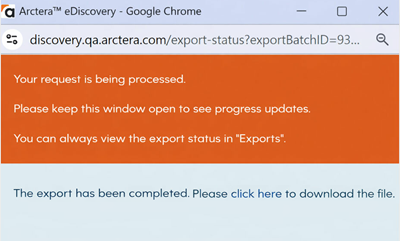
Click Export.Note: The exported batch can either gets downloaded as a single or multiple file segments.
-
Click Click here to download the exported batch of messages.
-
To confirm the status of batch export, on the Investigations tab, select Exports, and search this export batch name.
Related information