
Adding targeted Collection for Google Workspace
The Google Collection archive collector collects enterprise-level Google-specific conversation data. The collected data includes data from Google Chat, Gmail, and Drive. You can view the Google Workspace collector only if the Google Workspace Service is enabled for you in the Arctera Management Console. For more information, contact your system administrator.
Performance Best Practices:
To ensure efficient processing of Google Workspace collections, the following performance guidelines apply. While the system is designed to handle large-scale data, processing speeds are affected by Google Vault API limits, data volume, and item complexity. To maintain consistent processing speeds and responsiveness, large collections should be divided into smaller, manageable jobs as follows:
| Data Type | Recommended Limit per Job | Rationale |
|---|---|---|
| Gmail | Under 5 GB | Large historical exports require substantial time for end-to-end conversion and download. Smaller batches reduce the risk of processing bottlenecks. |
| Google Drive | Under 5 GB | Drive exports involve complex ZIP expansion and metadata parsing. Limiting to 5 GB or less improves turnaround time. |
| Google Chat | 25000 Messages | High-volume spaces with frequent edits or deletes demand additional processing resources to reconstruct data accurately. |
To add the Google Collection archive collector:
-
On the Investigations tab, in the left navigation pane, select Targeted Collection.
-
Click Add. The Select Collector Type pop up appears.
-
Select Google Workspace.
-
On the Collection Information tab, specify the following details, and click Save and Next.
Collection name Provide a unique name for this collection. Email Enter email to get notification once the targeted collection has finished processing. Select a collector to get data from Select the Microsoft Teams collector that is already configured in Management Console. -
On the Filters tab, specify the following details, and click Save and Next.
Source Select the data sources to archive. You can select the Mail, Chat, and Drive options. Based on the selected sources, the system creates separate collector instances for each type (Gmail, Chat, or Drive). Each instance uses a corresponding suffix: -Gmail, -Chat, or -Drive. Note: - If you select only the Mail option, the All Users checkbox is available under the User Scope Configuration section. - If you select the Chat or Drive options, the All Users checkbox is disabled. In this case, click Add Users to manually select specific users. User Scope Configuration 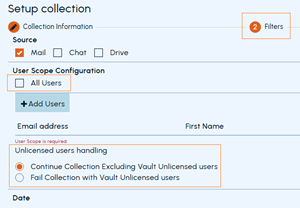 Add users whose data the collector has to archive.
- Select the All Users checkbox to include all users, or clear it to select specific users. - Clear the All Users checkbox to select specific users. Click the Add Users option to open the list of available users. Select the users whose data you want to collect, and click Update. Note: When the All Users checkbox is cleared, the Unlicensed Users Handling section appears. Select one of the following options: - Continue Collection Excluding Vault Unlicensed Users: The collection process continues even if Google Vault unlicensed users are encountered. These users are automatically excluded, and data is collected only for licensed users. - Fail Collection with Vault Unlicensed Users: The collection process stops if any Google Vault unlicensed users are encountered. No data is collected. Select a collector to get data from Select the Microsoft Teams collector that is already configured in Management Console. Date Specify the date range for collection. The available options are Before, After, and Between. Search Terms Provide any words that you want to search in the collection. Press ENTER to confirm the word or a phrase. You can enter multiple words and phrases. Select All to consider all the specified words and phrases you want to search and collect. Select Any to consider any of the specified words and phrases you want to search and collect. -
On the Send to Cases tab, specify the following details, and click Save and Next.
Send to existing case This field is optional. To send a result to cases, select this check box and choose one or more cases from the list of available cases. Navigate to the next and previous pages to access the available cases. Collection set name Enter the collection set name. When you select a single or multiple cases in the eDiscovery tab, the node of this name is displayed under the Case Documents node. After the targeted collector is configured and the displayed status is Archived, all the items are sent to this Collection Set in the respective cases under the Case Documents node. -
Click Save and Next to navigate to the Review tab.
-
On the Review tab, do the following:
-
Check the configuration information to ensure accuracy.
-
To modify configuration information, click the corresponding Edit link.
-
-
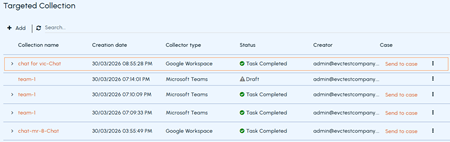
If the data is correct, click Complete.The Google Workspace archive collector appears on the Targeted Collections page.
-
If the status is Task Completed, you can do the following:
-
To view the Collection Defensibility Report of the collection, expand the targeted collector row. It displays the details like Items Collected, Items Received, Items Archived, Items Duplicate, Items Rejected, and Items Failed. To download this, click the Download icon.
-
To send items to cases, click Send to case in the respective row.
-
-
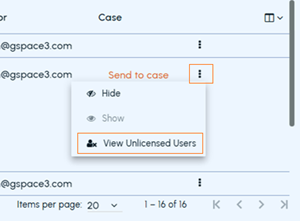
If the status is Task Completed and only the specific users are added (the All Users option was not selected) during collector configuration, you can view the users who are not licensed for Google Vault. On the Targeted Collections page, click the kebab icon (three vertical dots) provided in the selected collectors's row, and then click View Unlicensed Users. Refer to the sample image below:
 The Google Vault Unlicensed Users pop-up appears as displays the user list. Refer to the sample image below: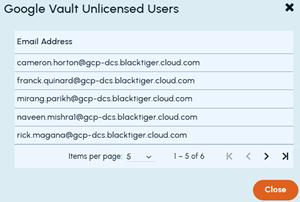
-
If the status is Incomplete, modify the collector configuration. To modify the configuration, click on the targeted collection name. If the configuration is incomplete, user cannot collect items properly. User cannot remove the previously selected and saved options.
-
Related information