
Translating email, collaboration message, and file content
The translation feature enables eDiscovery reviewers to translate non-English content directly in the item preview without downloading the item or using an external translation tool.
As a reviewer, you can translate complete or partial (selected portion) content of an email or collaboration message. However, for files and attachments, only the selected portion of the content can be translated.
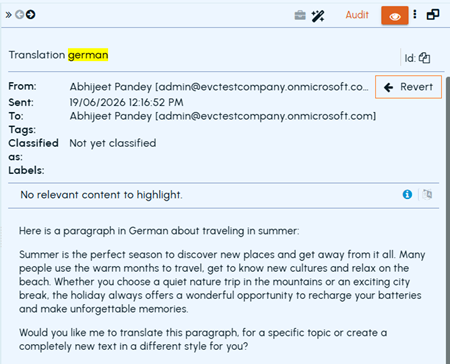
When you translate the complete content, the English translation replaces the original content in the preview. The Translate icon changes to Revert, which you can use to restore the original content.
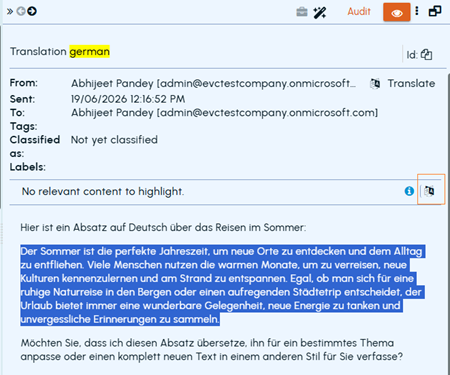
The Translate selected text to English icon becomes available only after you select text in the item body. Existing search-term highlights remain visible in the translated text.
Note: Full-item translations of emails and collaboration messages are cached for seven days. If you translate the same item again during this period, eDiscovery retrieves the cached translation instead of submitting another translation request. This reduces the associated AI usage.
Prerequisites
Ensure that the Translation feature is enabled for you or your group. If the feature is unavailable, contact your system administrator.
To translate the complete content of email or collaboration message:
-
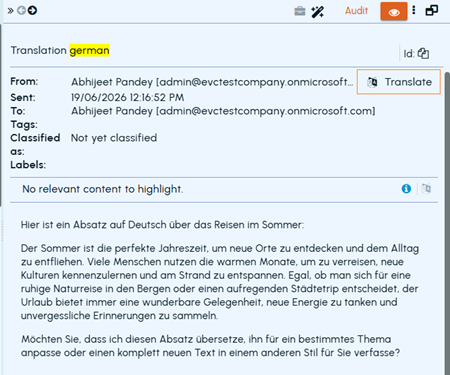
On the Emails or Collaboration tab, select an item to preview its content.Refer to the sample image below.
-
Click the Translate icon provided in the Preview pane.The application translates the content into English, and the Translate icon changes to Revert as shown in the sample image below. (The same options are available when you open the item in full-screen view.)
-
Click Revert to return to the original language.To translate the selected text in email, collaboration message, or file attachment:
-
On the Emails,**Collaboration **or Files tab, select an item to preview its content and attachments.The item and its available attachments open in the Preview pane.
-
Select the text that you want to translate.The Translate selected text to English icon becomes available. Refer to the sample image below.
-
Click Translate selected text to English.The application translates the selected text and highlights the translated section. Existing search-term highlights remain visible.Note: A selected-text translation is temporary. The Revert option is not available. When you navigate away from the item, the translation is discarded. When you return to the item, the original content is displayed.