
Signing in to Insight Surveillance
To sign in to Insight Surveillance
-
Enter the Insight Surveillance URL in the internet browser.
For the best viewing experience, use Mozilla Firefox or Google Chrome. Insight Surveillance is not supported on Internet Explorer.
Note: Whenever a new version of the Insight Surveillance application is available, the application displays the following alert. "A new version of this app is available. It is recommended to close all open tabs and reopen application for better experience. Click OK to refresh." Arctera recommends you to clickOKand close all the open browser tabs. Open the application again. In case you do not perform this action, the application page gets refreshed automatically and opens the latest version of the application.
-
(Optional) Bookmark this URL in the Insight Surveillance compatible internet browser.
See System requirements.
-
Enter your user name (format: domain\user name) and password in the authentication screen.
-
Click Sign In.
-
If the multi-factor authentication (MFA) is enabled for you, the OTP field appears on the authentication screen.
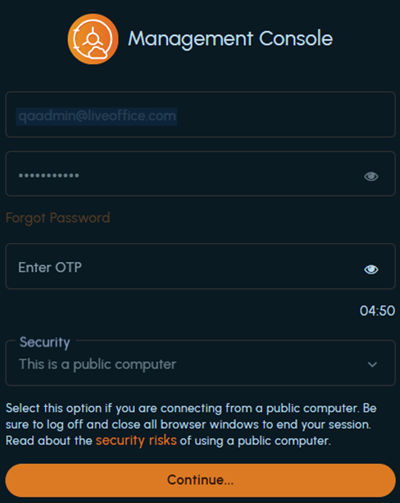
This email-based authentication enhances the access and data security of Insight Surveillance. Management Console administrators have the permission to enable or disable multi-factor authentication at the user and tenant level. If the email-based authentication is enabled for you, a one-time password (OTP) is sent to your registered email address for authentication and access to the application. This OTP remains valid for 5 minutes from the time of receiving the email.
Manually enter the OTP on the authentication screen within 5 minutes. Copy-pasting the OTP is not allowed.
If you fail to provide OTP within 5 minutes of receiving it, the application displays a message that the OTP has expired. To obtain a new OTP, click Resend OTP. The application sends a new OTP.
-
Click Continue.
After successful authentication, the Insight Surveillance dashboard appears.
Related information