
Previewing search results
Insight Surveillance makes it easy for a reviewer to preview the search results before accepting or rejecting them and deciding if the search is based on their expectations and if it needs to modify search criteria. The Search Preview feature is available for the immediate or scheduled searches that are complete, but the search acceptance is pending.
Note: Insight Surveillance does not support previewing certain file types, such as.dlland.exeand large files (over 10MB to maintain browser responsiveness). For compressed files, Insight Surveillance supports previewing only the.zipfile format and does not support other formats like.7z,.tar, and so on.
To preview the search results
-
In the left navigation pane, click Department.
-
Search for and select the department to view the associated searches.Note: Insight Surveillance lists all departments. You can use the filtering options to search for the required department. Options include filtering by department name, exception employees, and reviewers associated with the department.
-
Click Searches. A list of search results is displayed.
Enter the desired value in the text field and click the Searchicon to view the searched items , or theClearicon to remove the value from the search field. To filter the searched items, click theFilter icon.
 |
|---|
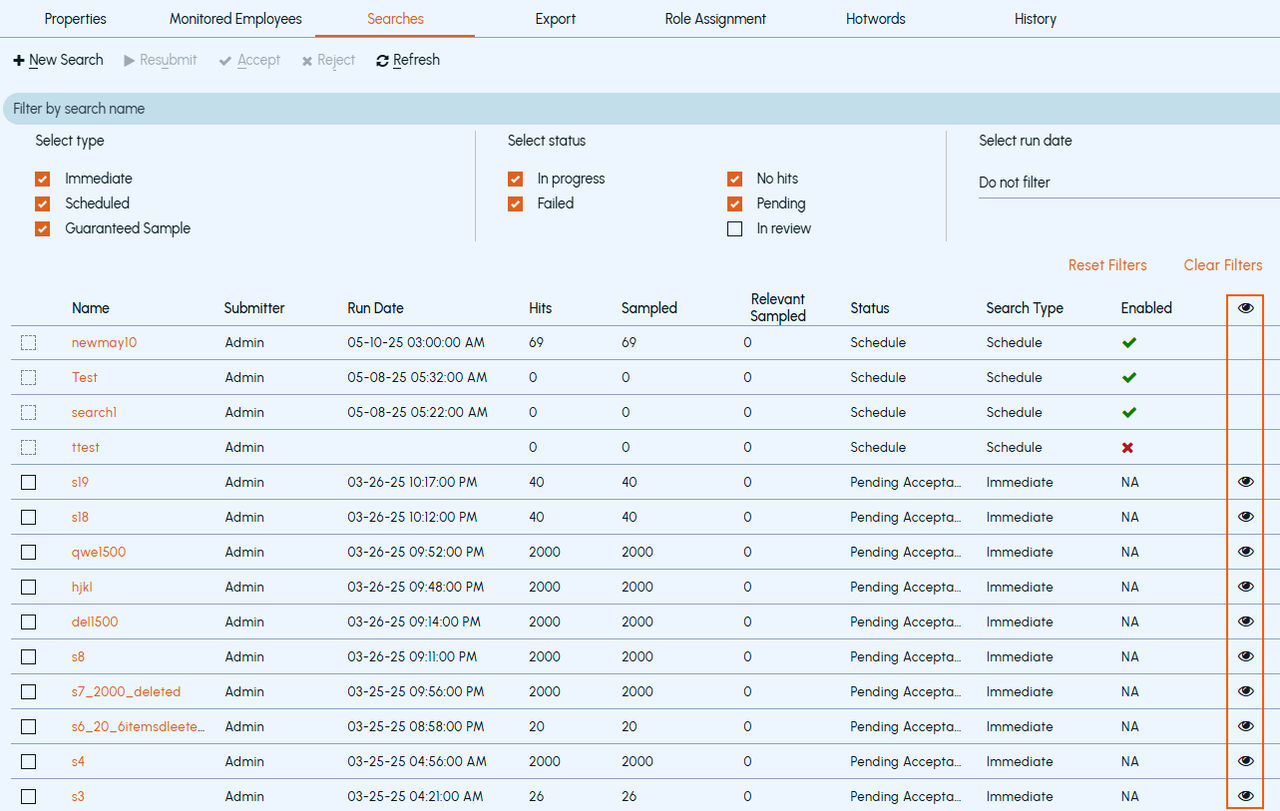
All the searches matching your filter criteria are displayed in a list form. A Preview Search icon is displayed for the searches whose acceptance is pending and for the scheduled searches as shown in the sample image above.
-
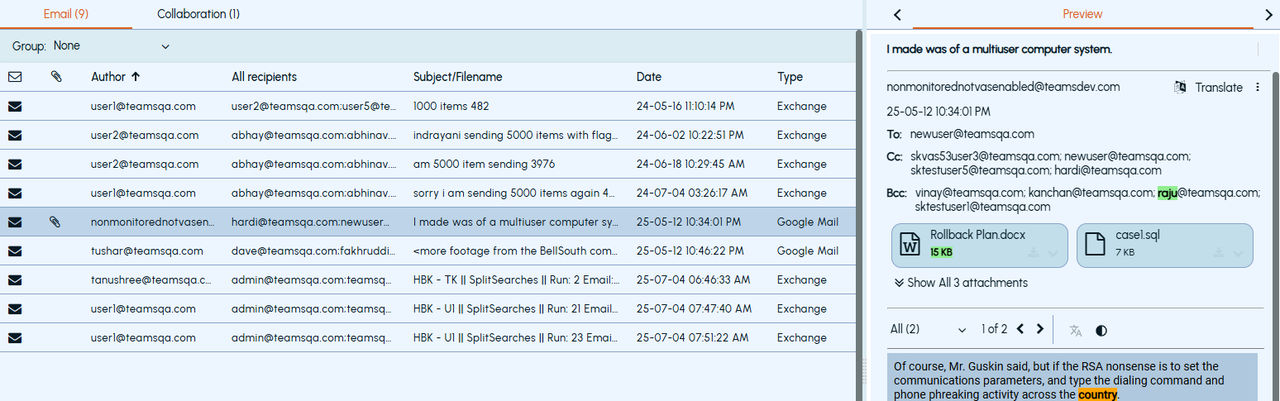
To preview the immediateandscheduled searches with the Pending Acceptancestatus, click thePreview Search icon. The search items are displayed in a new browser window.
-
To preview the schedule search, click the Search Runs(...) button for the desired scheduled search. To preview the desired scheduled search with thePending Acceptancestatus, click thePreview Search icon. The search items are displayed in a new browser window.Note: If only theExchangeservice is enabled for you, theEmailtab appears. If theExchangeand theMicrosoft Teamsservices are enabled for you, theEmailand theCollaborationtabs appear respectively. When both the services are enabled, but the search does not find any email or collaboration message record, the corresponding tab is displayed without any items in it.
-
On the Email tab, perform the following actions:Note: The selections made for the Group and sorting of items are persisted across all login sessions for the logged-in user.
-
Group the search for the oldest or newest items based on a day or month.
-
Preview an item and its attachments in the right-side Preview pane.
-
You can double-click on the item to open it in a new browser window.
-
Print the item or its attachment using the Actionbutton on thePreview pane.
-
Download the item in its native format or its attachment using the Actionbutton on thePreview pane.
-
On the Collaboration tab, perform the following actions:Note: You do not need to group the collaboration messages. The application groups the Teams Channel and Chat messages for your review. You can view record of maximum 100 groups per page and maximum 20 items per page within a group. Use the navigation bar options to go to previous and next pages.
-
Expand the required Teams Channel and Chat message group to select items within the group.
-
Preview an item and its attachments in the right-side Preview pane.
Related information