
Managing department-specific single choice label groups
Department-specific single choice label groups management covers creating, editing, deleting, activating, deactivating, propagating, and unpropagating operations. You must have the Manage Labels permissions to perform these operations.
Creating department-specific single choice label groups
To create a department-specific single choice label group
-
In the left navigation pane, click Departments.
-
Search for and select the department in which you want to create a single choice label group.
-
Navigate to the Labelstab, and then clickNew Single Choice Group.
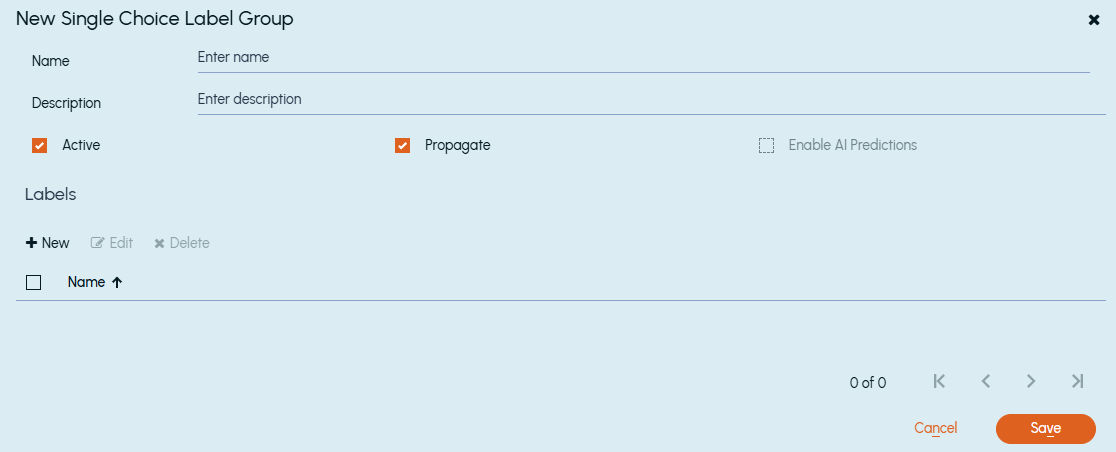
The New Single Choice Label Group dialog box appears.
 |
|---|
-
In the Name filed, type a unique single choice label group name.
-
In the Description field, provide a description of this single choice label group.
-
Select the Active check box to activate the single choice label group.
Remember that -
-
Only the active single choice label groups can be enabled for AI predictions, therefore, the Enable AI Predictions check box remains disabled until the label is activated.
-
Do not select the Active check box if you want to keep the single choice label group in the deactivated state.
-
Select the Propagate check box to ensure the sub-departments inherit this single choice label group.
Do not select the check box if you do not want to propagate this single choice label group to sub-departments.
-
Select the Enable AI Predictions check box to consider this single choice label group for AI Prediction.Note: Per department, only 20 active labels (including single choice group labels) can be enabled for AI predictions. Upon deactivation, the previously AI prediction-enabled labels and label groups get disabled.
-
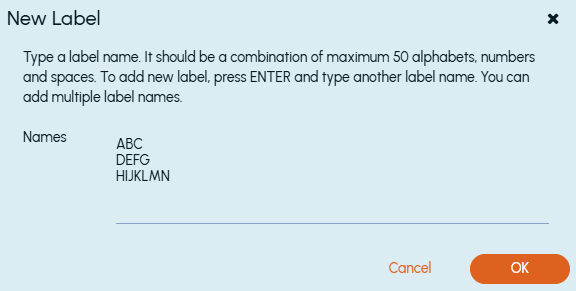
Click Addto open theNew Label dialog box.
-
Manually type new labels, and click OK.Note: New label names must be a combination of maximum 50 characters that includes alphabets, numbers and spaces. After adding a label name, press ENTER to add the next label. You can add multiple label names as shown in the sample image below.
-
Click Save.
Editing department-specific single choice label groups
To edit a department-specific single choice label groups
-
In the left navigation pane, click Departments.
-
Search for and select the department in which you want to edit a single choice label group.
-
Navigate to the Labels tab.
-
Search for the single choice label group that you want to update. See Searching application-specific labels, label groups, and single choice groups.
-
Select the single choice label group, and click the Edit icon in the same row.
-
In the Edit Single Choice Label Group dialog box, update the details of the required fields.
If required, select an individual label and do any of the following.
-
Click Edit to update the label name.
-
Click Delete to remove the label entry from the group.
-
Click Save.
Activating department-specific single choice label groups
To activate a department-specific single choice label group
-
In the left navigation pane, click Departments.
-
Search for and select the department in which you want to activate a single choice label group.
-
Navigate to the Labels tab.
-
Search for the deactivated single choice label group that you want to activate.
-
Select the single choice label group and do any of the following steps:
-
On the action bar, click Activate.
-
Click the Editicon in the same row. In theEdit Single Choice Label Groupdialog box, select theActive check box.Note: Per department, only 20 active labels (including single choice group labels) can be enabled for AI predictions.
-
The updated data appears on the Labelspage. If required, clickRefresh on the action bar.
Deactivating department-specific single choice label groups
To deactivate a department-specific single choice label group
-
In the left navigation pane, click Departments.
-
Search for and select the department in which you want to deactivate a single choice label group.
-
Navigate to the Labels tab.
-
Search for the active single choice label group that you want to deactivate.
-
Select the single choice label group and do any of the following steps:
-
On the action bar, click Deactivate.
-
Click the Editicon in the same row. In theEdit Single Choice Label Groupdialog box, clear theActive check box.
-
Deactivating a single choice label group disables AI predictions for that single choice label group.
The updated data appears on the Labelspage. If required, clickRefresh on the action bar.
Propagating department-specific single choice label groups
To propagate a department-specific single choice label group
-
In the left navigation pane, click Departments.
-
Search for and select the department in which you want to propagate a single choice label group.
-
Navigate to the Labels tab.
-
Search for the unpropagated single choice label group that you want to propagate.
-
Select the single choice label group and do any of the following steps:
-
On the action bar, click Propagate.
-
Click the Editicon in the same row. In theEdit Single Choice Label Groupdialog box, select thePropagate check box.
-
The updated data appears on the Labelspage. If required, clickRefresh on the action bar.
Unpropagating department-specific single choice label groups
To unpropagate a department-specific single choice label group
-
In the left navigation pane, click Departments.
-
Search for and select the department in which you want to unpropagate a single choice label group.
-
Navigate to the Labels tab.
-
Search for the propagated single choice label group that you want to unpropagate.
-
Select the single choice label group and do any of the following steps:
-
On the action bar, click Unpropagate.
-
Click the Editicon in the same row. In theEdit Single Choice Label Groupdialog box, clear thePropagate check box.
-
The updated data appears on the Labelspage. If required, clickRefresh on the action bar.
Deleting department-specific single choice label groups
To delete a department-specific single choice label group
-
In the left navigation pane, click Departments.
-
Search for and select the department from which you want to delete a single choice label group.
-
Navigate to the Labels tab.
-
Search for the single choice label group that you want to delete.
-
Select the single choice label group, and click Delete on the action bar.
Related information