
Viewing hotwords in collaboration message
Insight Surveillance provides the option to highlight keywords in a hotwords set that are added as search terms. Highlighting applies to message content and attachment content only. See Creating and running department-level searches.
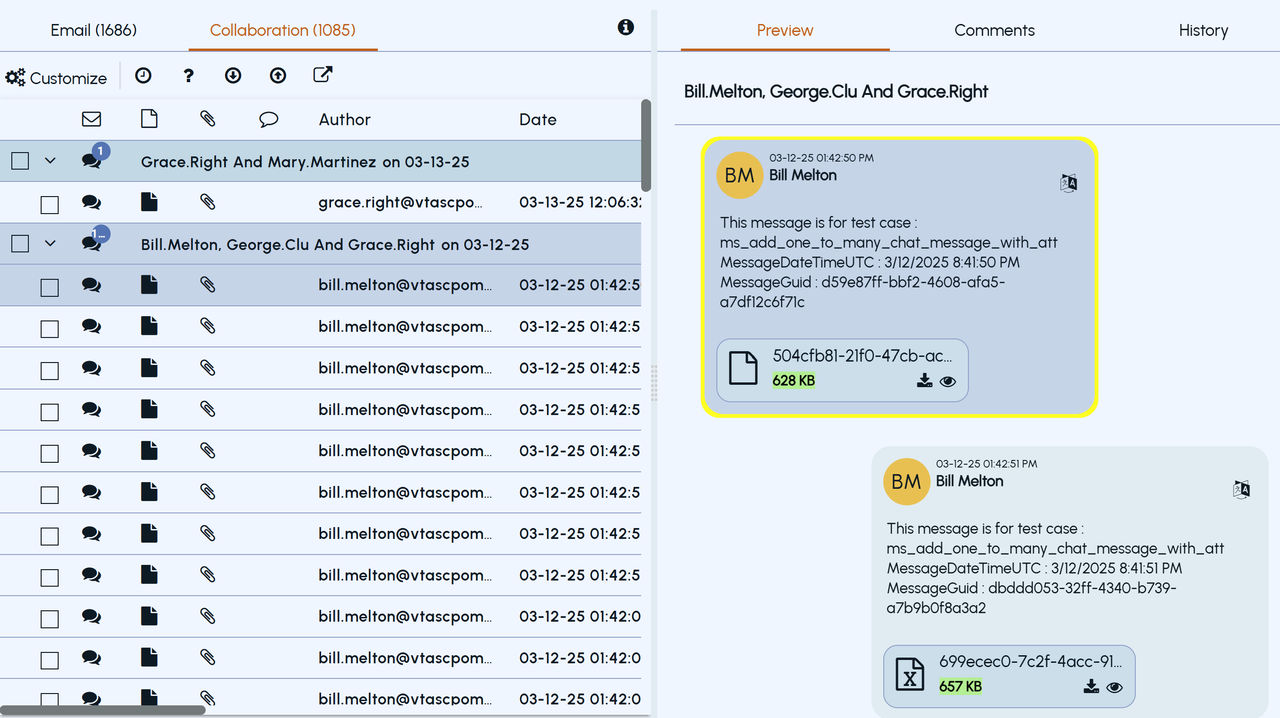
If the collaboration message contains the hotwords and tagged instances, the hotwords are highlighted in yellow color and the tags are highlighted in green color.
A search with a hotword returns the exact matches only. When an asterisk character is used with the hotword, the search returns items with partial matches also. For example, two hotwords, "code" and "codebreaker," are available. A search with "code" returns items where "code" is present as an independent word. A search with "code*" returns all items that contain "codebreaker" as well as items that contain only the "code" keyword.
To view highlighted hotwords in a collaboration message
-
In the left navigation pane, click Review.
-
Search for and select the department for which you want to review items.Note: Insight Surveillance lists all departments. You can use the filtering options to search the required department. Options include filtering by department name, exception employees, and reviewers associated with the department.
-
(Optional) To reset the filtering criteria, click Clear , and set a new criterion.
-
Click Apply.
The application displays emails and collaboration messages from the selected departments.
-
Select a Teams Chat or Channel item to view its details in the Preview pane.Note: If the search applied to the item has configured with hotwords, these hotwords are shown in the Preview pane and are highlighted in yellow color. However, highlighting is shown only if at least one hotword is applied to the review item.
-
To navigate through older chat messages, use the scroll bar.
-
To view the search that is applied to the review item, hover over the hotword instance.
Related information