
Adding monitored employees and employee groups to departments
You can add monitored employees and employee groups to the Insight Surveillance departments in the following ways:
-
While creating a department in Insight Surveillance (described below)
-
While creating an archive account in the Arctera Insight Management Console
Insight Surveillance administrators do not need to create employee profiles separately in Insight Surveillance. Instead, Insight Surveillance receives employee profiles from Arctera Insight Archiving. However, for this synchronization, the SQL Server and the Audit server must communicate with each other and the Auditing service should be enabled for the selected department.
Note: Insight Surveillance audits the activity of assigning monitored employees to departments and generates a log file for your reference.
An important activity in Insight Surveillance is to add employees and employee groups to the departments in which you want to monitor them. You can add new employee groups to Insight Surveillance from the Microsoft Azure Active Directory. See Adding employee groups.
Note: You must have theAdd Monitored EmployeesandGrant Users Accesspermissions to add employees to a department. By default, users that have theUser Adminrole have these permissions.
For more information on searching for archive accounts, creating an archive account, deploying users and enabling their access to Insight Surveillance, and removing user access, see the Arctera Insight Management Console User Guide.
To add monitored employees to a department
-
In the left navigation pane, click Departments.
-
Search for and select the department to which the monitored employees will be added.Note: Insight Surveillance lists all departments. You can use the filtering options to search the required department. Options include filtering by department name, exception employees, and reviewers associated with the department.
-
In the Monitored Employeestab, clickAdd Employees.
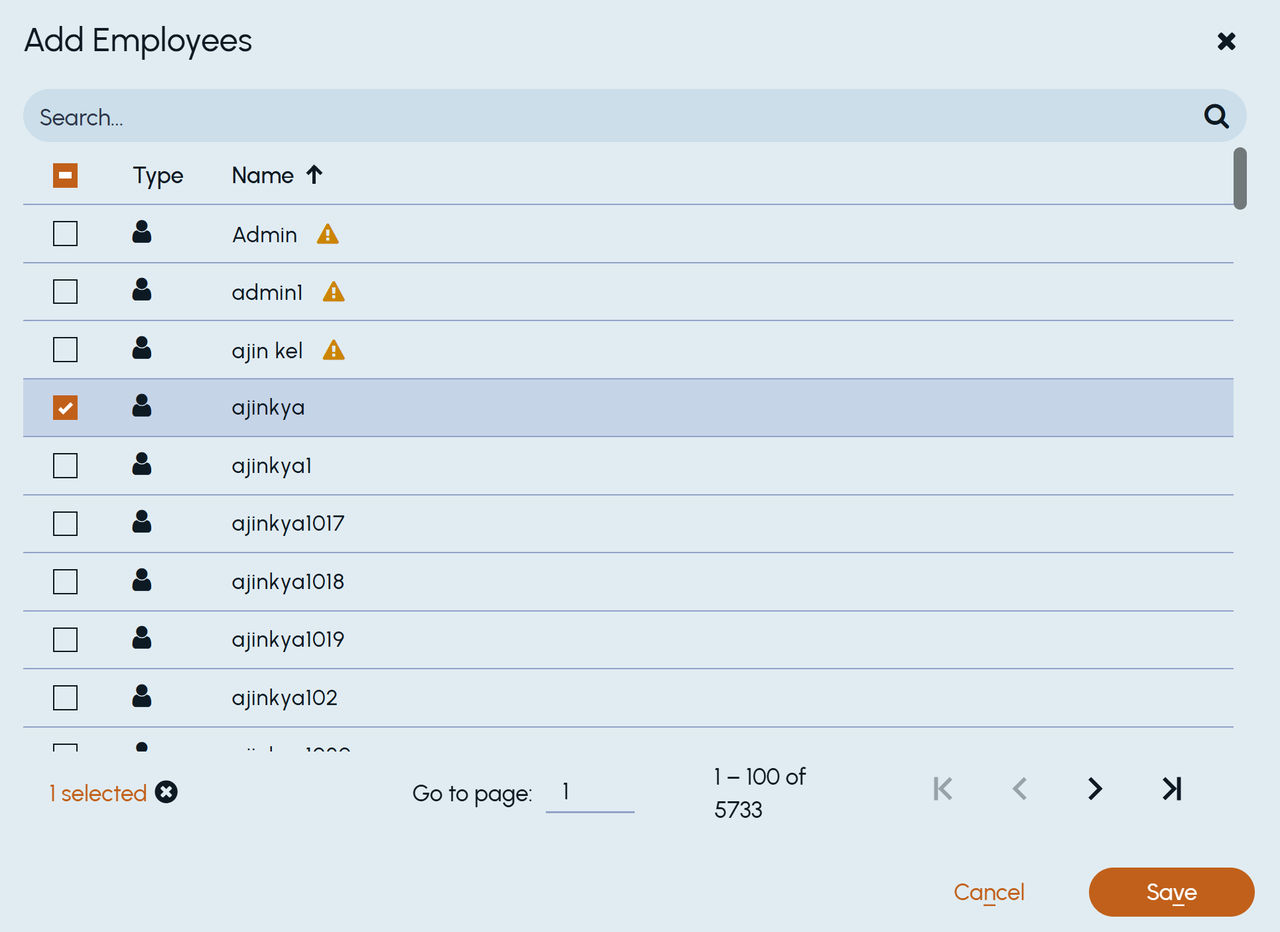
The Add Employees dialog box appears and displays the available employees and employee groups.
 |
|---|
-
Search for and select one or more employees and employee groups.Note: Remember the following: - Individual employees and employee group are distinguished using the different icons. - If the selected employee and employee group are already monitored in other departments, an exclamation icon is displayed besides the names of those employees and employee groups. You can still add such employees to the department for monitoring purposes. The system displays a prompt listing the first ten departments and the number of the remaining departments in which the employee or employee groups being monitored.
To select multiple employees and employee groups from multiple pages, select the corresponding check boxes. Click the navigation arrows to go to the next or the previous pages.
-
Click Save.
Related information