
Editing custom employee group details
You must have the Manage Employeespermission to edit an employee profile. By default, users with the application-levelApp User Admin role have this permission.
To edit the details of the custom employee group
-
In the left navigation pane, click Groups.
-
Click on the Employee groups section and expand it.
-
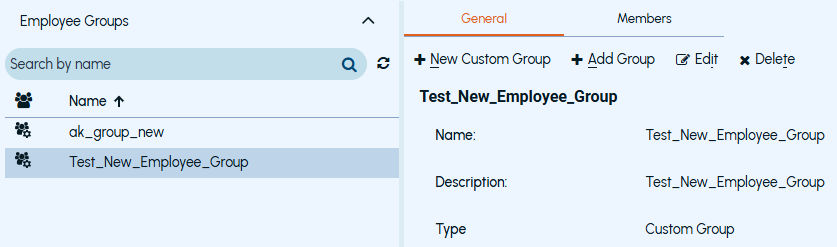
Search for and select the employee group you want to edit.
-
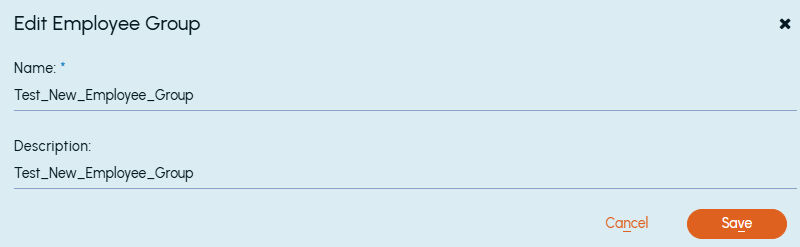
By default, the Generaltab is displayed. If not, select theGeneraltab. On the action bar of the tab, clickEdit. TheEdit Employee Group dialog box appears.
-
Update the employee group details. For more information on the employee group fields and adding members to a group, See Creating custom employee group.
-
Click Save.
-
On the action bar of the tab, perform the following actions as required:
-
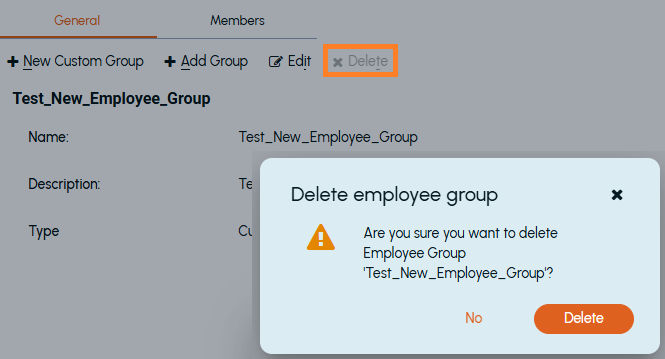
Deleting an employee group: If an employee group is no more required, underGeneraltab, clickDelete.
-
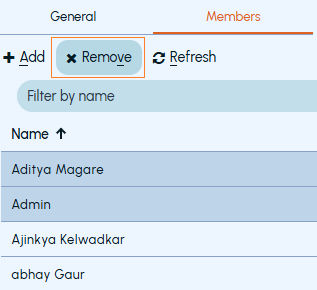
Removing an employee from employee group: If an employee is no longer a part of an employee group, underMemberstab, select the employee/s, clickRemove.
-
Related information