
Printing and downloading the items and attachments
Besides the HTML-rendered view of the items in the Preview pane, you can print and download the item in its original form. The downloaded items exclude audit-specific information, like reviewer comments. To obtain the item and its audit information, you need to export the item.
Note: Insight Surveillance does not support previewing certain file types, such as.dlland.exeand large files (over 10MB to maintain browser responsiveness). For compressed files, Insight Surveillance supports previewing only the.zipfile format and does not support other formats like.7z,.tar, and so on.
You must possess the Review Messages permission to download items. By default, all reviewers and supervisors have this permission.
To print and download the item and attachment
-
In the left navigation pane, click Review.
-
Filter the items in the review pane. See Filtering the items in the Review pane.
In the items grid, a list of review items from the selected departments appears.
-
Select the review item in the items grid, and access the Preview tab as shown in the sample image below.
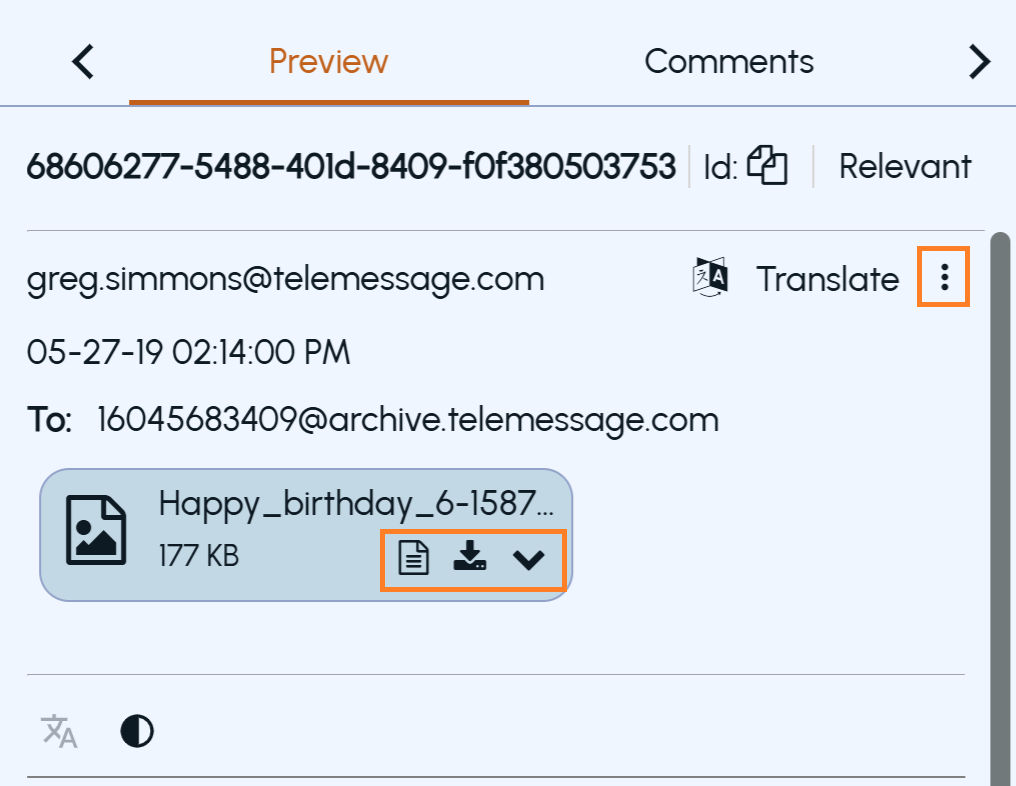 Note: If you select multiple items, you cannot print or download these items simultaneously.
 -
Do the following as required.
-
To download an attachment, hover over the attachment, and click the Download icon. The file is downloaded to a location based on your settings, mostly in the Downloads folder.
-
To download the original version of item, click the kebab icon and click Download.
-
To print the item, click the kebab icon and click Print.
-
In the Print dialog box, ensure the correct file format and specify the location to save the file.
Related information