
Reviewing searched items
Before you start reviewing items, you must know that you can view emails if the Exchange service is enabled for you. You can view collaboration messages if the MS Teams Archiving service is enabled for you. When both the services are enabled, but the search does not find any email or collaboration message record, the corresponding tab is displayed without any items in it. The Email and the Collaboration tabs individually displays total number of searched and filtered review items.
To review items and checking their tags and hotwords statistics
-
In the left navigation pane, click Review.
-
Search for and select the department for which you want to review items.
Insight Surveillance lists all departments for which you have the review permissions.
-
(Optional) Use Advanced FilterandFiltersto view the precise review items quickly. To reset the filtering criteria, clickClear, set a new criterion, and clickApply.
The application displays items from the selected departments.
The item grid displays multiple columns. Based on your review priorities and focus, you can:
-
Sort items by clicking the column headings.
For example, to view more relevant items for review, click the Relevance Score column heading. Items with higher relevance scores are more relevant, while lower scores suggest irrelevance.
-
Rearrange the column sequence. See Rearranging columns in the item list pane.
-
Use the navigation arrows at the bottom of the items grid to go to the first, previous, next, or last page.
These changes are persisted across different login sessions for the logged-in user.
Note: TheRelevance Scorecolumn is displayed in the list pane by default. However, the score (value) is calculated and displayed only if the intelligent review service is enabled for the selected departments. For the departments that are not enabled for the intelligent review service, the application displays the column, but the values remain blank.
-
To review the filtered emails, on the Email tab, select the email.Note: You can use Shift+Click to quickly select or unselect multiple rows in the Review screen. Click a starting row, hold Shift, and click another row to select the entire range.
-
If you select an individual email in the items grid, you can view the Preview,Comments, and theHistory tabs.
-
On the Preview tab, you can view email metadata and content, print, and download the item.
-
On the Comments tab, you can view previous review comments for the selected email.
-
On the History tab, you can view the detailed summary of the operations that are performed on the selected email.
-
-
If you select multiple items in the items grid, you cannot view the Preview,Comments, and theHistory tabs. Instead, you get options to assign a review statuses to all the selected messages simultaneously.Note: Since thePreviewtab is not visible, the flag icon depicting AI-predicted labels and their count is also not visible.
-
To comment on the selected email, click Add Comment. See Adding comments to items.
To assign status to the selected email, click Pending,Questioned,Review Irrelevant,Reviewed Relevant,Escalate, orAppraised as required.
-
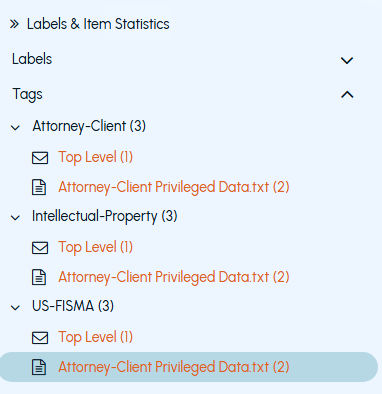
To view the tags-specific statistics of the selected email, in the Labels & Item Statisticspane, expand theTags section.
The displayed information includes the names of applied tags or classification policies. Next to each tag name, the number of incidents that match the corresponding tags or policies in the selected items is shown. After you expand the tag name, the application displays number of matches in the top-level content of the item and in each attachment of the item. See the sample image below.
 |
|---|
Note: By default, Insight Surveillance analyses and displays statistics only for tags that have a match. Tags that do not match are not shown in the list. TheTop Levelnode and the attachments nodes are visible only if the emails have the specified tags. In case there are no matches for the tags in the primary emails, theTop Levelnode will not be displayed. Similarly, if there are no matches for the tags in the attachments, those attachments will also not be displayed. Click the hyperlinks to view the respective tags in thePreviewpane. Click the arrows to navigate to the next or previous match. The navigation is limited to the content of email body message and attachments, and not within the email metadata. If the attached image contains tags, clicking the hyperlink from the tags statistics pane opens the image in text format for convenient review of the tags.
-
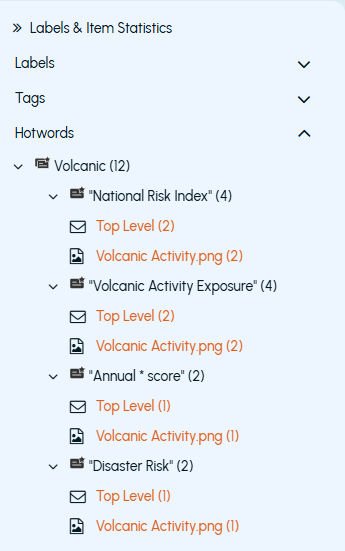
To view the hotwords-specific statistics of the selected email, in the Item Statisticspane, expand theHotwords section.
The displayed information includes the names of hotwords sets and individual hotwords. Next to each entry, the number of incidents that match the corresponding hotwords or hotwords sets in the selected items is shown. After you expand the hotwords set name, the application displays the included hotwords and their number of matches in the top-level content of the email and in each attachment of the email. See the sample image below.
 |
|---|
By default, Insight Surveillance analyses and displays the statistics of hotwords that are found in each item and have a match. Hotwords and hotword sets that do not match are not shown in the list.
The Top Levelnode and the attachments nodes are visible only if the content within them contains the specified hotwords. In case there are no matches for the hotwords in the primary emails, theTop Level node will not be displayed. Similarly, if there are no matches for the hotwords in the attachments, those attachments will also not be displayed.
Click the hyperlinks to view the respective hotwords in the Preview pane. Click the arrows to navigate to the next or previous match. The navigation is limited to the content of email body message and attachments, and not within the email metadata.
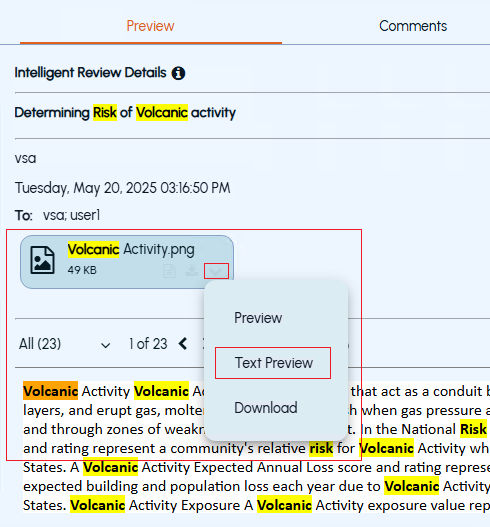
Insight Surveillance supports viewing image attachments in review items in both text and Native formats. If the attached image contains hotwords, clicking the hyperlink from the hotwords statistics pane opens the image in text format for convenient review of the hotwords. You can preview the hotwords in the images in the following ways:
-
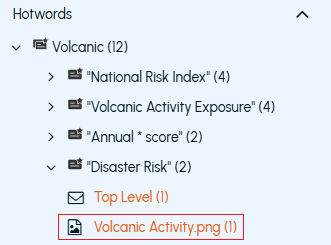
Access the Hotwords pane. Expand the top-level hotword and check for the image hyperlink. If listed, click the hyperlink to open the text preview of the image directly.
-
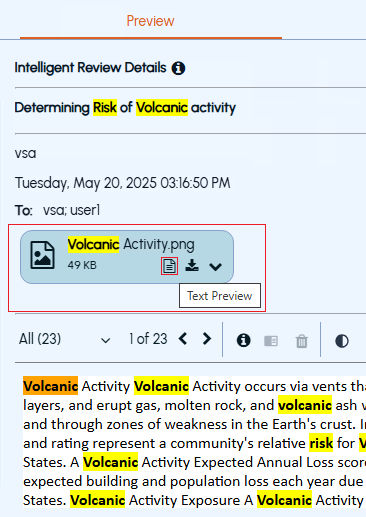
In the Previewpane, select the image and click theText Preview icon to open the image in the text format.
-
In the Previewpane, click the down caret symbol and select theText Preview option.
-
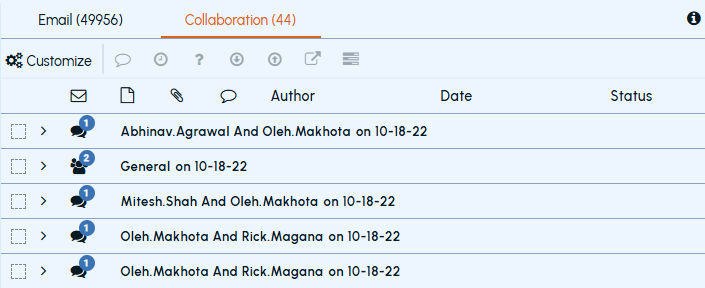
To review the filtered collaboration messages, select the Collaboration tab.
The Collaboration tab displays a maximum of 100 groups per page. To view additional records within the groups, use the navigation bar at the bottom of the page. The chat or channel icons display the number of items in each group. The checkbox for a group remains disabled when the group is in a collapsed state.
 |
|---|
-
Select or expand the chat to view and select the review items.
Notes :
1\. You can use Shift+Click to quickly select or unselect multiple rows in the Review screen. Click a starting row, hold Shift, and click another row to select the entire range.
2\. By default, the Collaboration view displays related messages within ±5 years of the selected item. This time range can be customized at the tenant level. To enable or modify this configuration, contact Arctera Technical Support.
Each group displays record of maximum 20 messages per page. However, if the group contains more items that are spread across multiple pages, you can do any of the following:
-
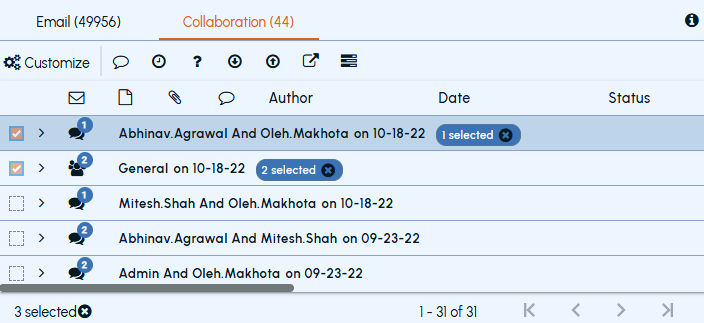
To select all the items displayed on the page of the expanded group, expand the group and select the parent check box of the group. After selecting the items, on the navigation bar of the page of the expanded group, the application displays the total count of selected items from that group.
-
To select items from the multiple pages of the expanded groups, expand the groups and use the navigation bar to access pages, and then select the items. After selecting the items from multiple pages of multiple groups,
\- On the navigation bar of a group row, the application displays the total count of selected items from that group.
\- On the navigation bar of the Collaboration page, the application displays the total count of selected items from multiple groups.
\- On the Collaboration page, if you select items from multiple groups and navigate to the next page, application clears the selection.
\- However, on the Collaboration page, if you select items from the same group and navigate to the next page, the application retains the item selection.
 |
|---|
-
After you expand the chat or the group, select an individual message for review.
-
On the Preview tab, you can do the following:
-
Scroll up or down to view more messages to understand the context of the selected message. The application displays 30 previous conversation messages above and 30 conversation messages below the selected message. However, you can further scroll up or down to read more messages.
-
-
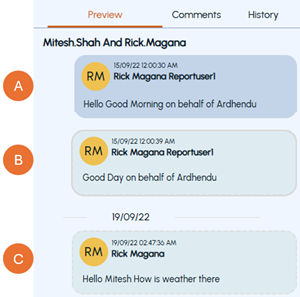
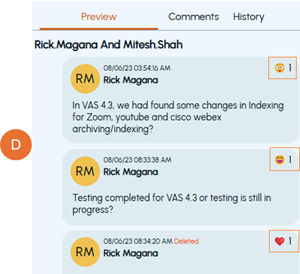
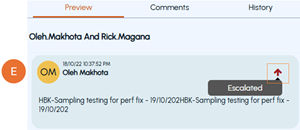
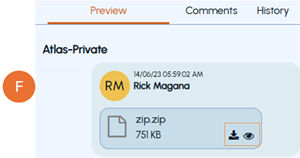
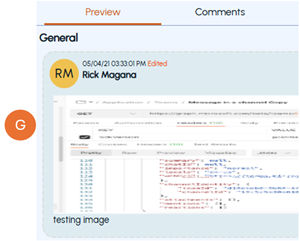
The typography of the displayed messages in the preview pane and its meaning is explained below.
| Message Typography | Meaning... |
|---|---|
 |
- |
|
- |
|
B. The messages that are part of the review process, and are displayed to get context for the reviewer, are marked in the grey box. |
| C. The messages that are not a part of the review set for that department are highlighted in the dashed box. | - |
 |
- |
| - | - |
 |
- |
| - | - |
 |
- |
| - | - |
 |
- |
| - | - |
-
Preview and download attachments
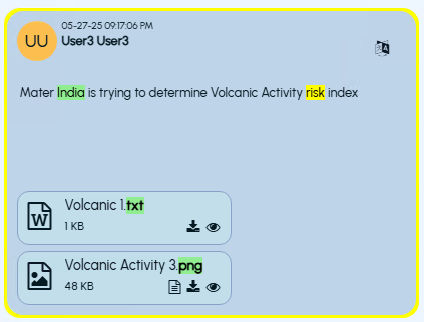
Refer to the sample image above.
-
To preview content of an attachment in a new window without downloading the attachment, either click on the attachment itself or click the Preview icon provided on the attachment.
-
To download an attachment, access the attachment and click the download icon.
-
The attachment preview also supports displaying hotwords and classification hit highlighting along with navigation.
-
Click the Text Preview icon to open the image in the text format.
-
On the Comments tab, you can view previous review comments for the selected message.
-
On the History tab, you can view the detailed summary of the operations that are performed on the selected message.
-
To comment on the selected collaboration message, click Add Comment. A reviewer can comment on individual messages, not on the entire conversation thread.See Adding comments to items.
-
To assign status to the selected collaboration message, click Pending,Questioned,Review Irrelevant,Reviewed Relevant,Escalate(See Escalating the review items.), orAppraised as required.Note: While reviewing collaboration messages, you cannot select more than 100 messages for commenting and assigning status.
Related information