
Applying labels to items
During a review, you can apply labels to review items such as emails and collaboration messages. The application displays only the currently active labels that can be utilized for labeling the items. The example explained in this section is applying labels to emails. You can use the same procedure to apply labels to the collaboration messages.
The permissions that are assigned to you determine the labels that you can add. By default, the Compliance Supervisor, Exception Reviewer, Department Reviewer, and theEscalation Reviewerroles have theApply Labels permission.
To apply labels to an item
-
In the left navigation pane, click Review.
-
Filter the items in the review pane.
-
Click Apply to view the review items (emails and collaboration messages) from the selected departments.
-
Select the item to view its details in the Preview pane.
Along with the content preview, the application displays comments and history of the review item in the respective tabs.
-
In the Labels & Item Statisticspane, expand theLabels section.
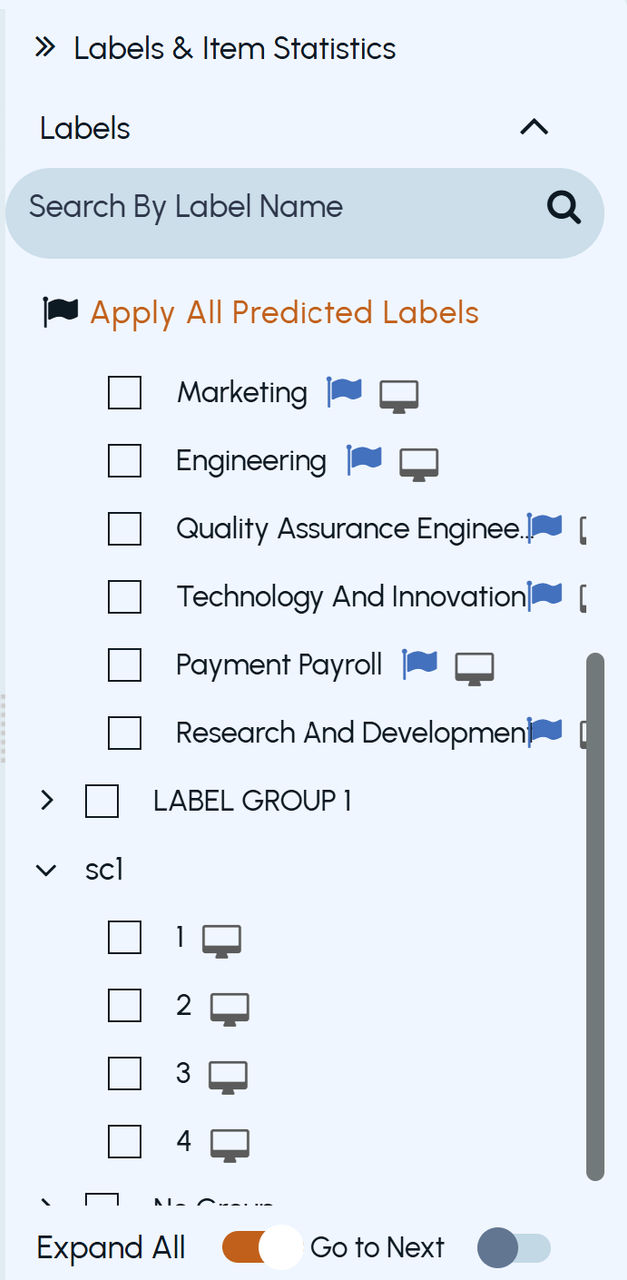
The application displays only active labels that are listed under the available label groups and single choice label groups as shown in the following sample image:
 |
|---|
-
Expand the groups, or search for and select one or more relevant labels that are listed under the available label groups and single choice label groups. The individual labels that are not part of any group are listed under the No Group node.
-
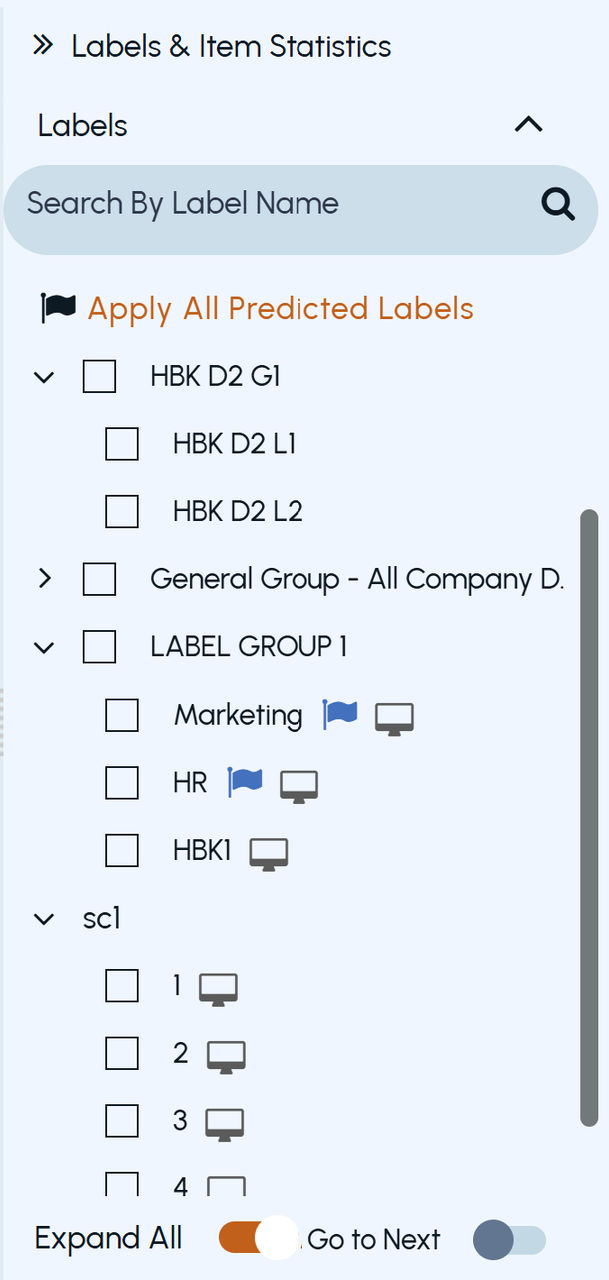
In the Labels pane, select the check box next to all the labels you need to apply.Note: You can easily distinguish between the application-specific, department-specific labels, and AI-predicted labels. The department-specific labels do not have any icon. The application-specific labels are displayed along with the monitor icon. The AI-predicted labels are displayed along with the flag icon. Refer to the following sample image:
Related information
Notifications and Permissions Behaviour
-
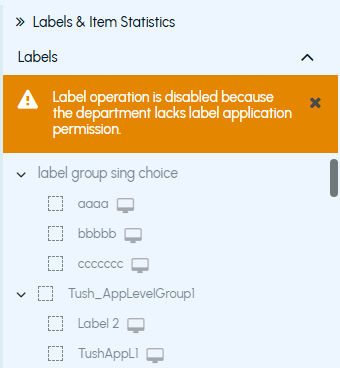
If a department does not have permission to apply labels, the label pane is disabled, and a notification is displayed:
Label operation is disabled because the department lacks label application permission
-
If you select multiple departments items and only some have label permissions, the label pane remains enabled, and a notification is displayed:
Label application permission is missing for some departments. Only applicable items are updated
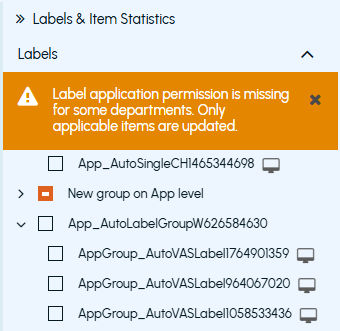
In this case, labels are applied only to items from departments with the appropriate permissions. The same can be confirmed by label checkbox which shows a partial selection.
-
Click Apply All Predicted Labels to apply all the AI-predicted labels to the selected items, except those from single choice groups.
-
Click Expand All to switch between the collapsed and expanded views to view the available labels.
-
Click Move Next to perform a single label action and proceed to the next item automatically.
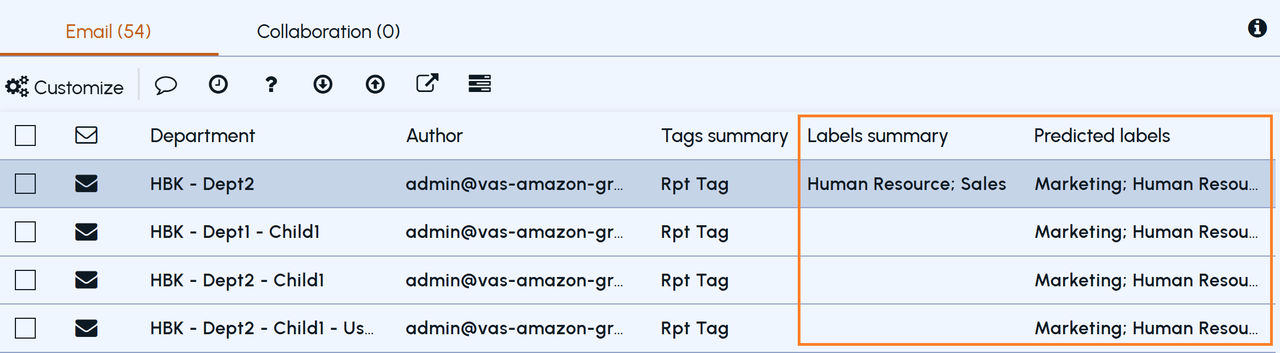
Applied labels appear in the Labels Summarycolumn, while AI-predicted labels appear in thePredicted Labels column. Multiple labels are separated by semicolons (;) as shown in the following sample image. You cannot sort the items using this column.
 |
|---|
-
To remove any label, just uncheck the label. It gets removed and the same is reflected in Labels Summary column.
-
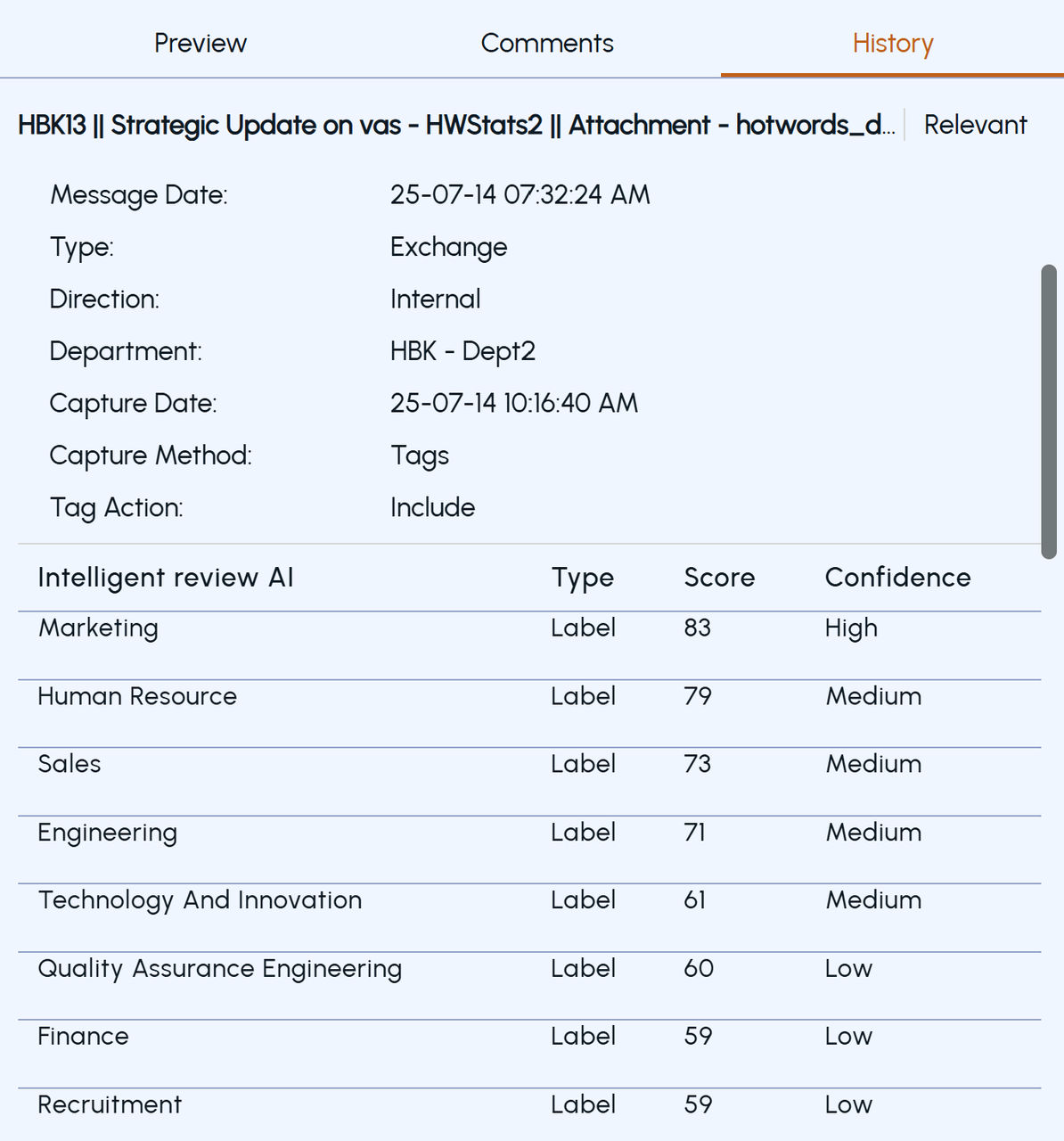
Click on the same review item and select the History tab.
The labels history is shown as shown in the following sample image:
 |
|---|
Note: Upon exporting, the export report includes the details and the history of added and deleted labels under theTypecolumn as shown in the sample image below.