
Editing monitoring policies
You can define the percentage of items that Insight Surveillance should capture for a monitored employee. You must have the Assign % Review Requirementpermission to edit the monitoring policy for an employee. By default, users that have theRule Admin role have this permission.
By default, employee level sampling is enabled. So, you can only edit the monitoring policies at employee level. If you want to edit monitoring policies at department level, contact Arctera Technical Support.
Note: When the department level sampling is enabled, the option to edit monitoring policies is disabled. In this case, Insight Surveillance honors the monitoring percentage of the department mentioned on theDepartmenttab for sampling and not the employees monitoring percentage mentioned on theMonitored Employeetab.
To edit monitoring policies at employee level
-
In the left navigation pane, click Departments.
-
Search for and select the department you want to edit.Note: Insight Surveillance lists all departments. You can use the filtering options to search the required department. Options include filtering by department name, exception employees, and reviewers associated with the department.
-
Click the Monitored Employees tab.
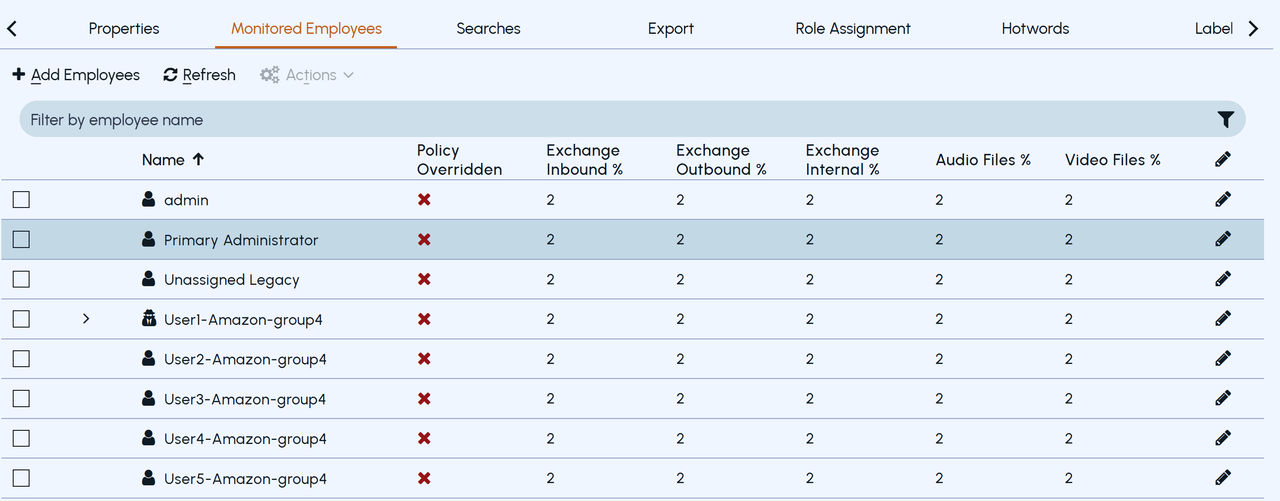
A list appears, showing all monitored employees along with their configured and enabled content sources. as shown in the sample image below.
 |
|---|
To search for employees by name, in the Filter by Employee Name field, enter keywords that characterize employee names or construct a query. Press ENTER or click the filter icon to view the filtered names. Avoid using wildcard characters (asterisk or question mark) for partial searching, as they do not yield results.
If the employee level sampling is enabled, the option to edit monitoring policies is enabled.
-
Click the Edit Monitoring Policies icon for the employee whose monitoring policies you want to edit.
-
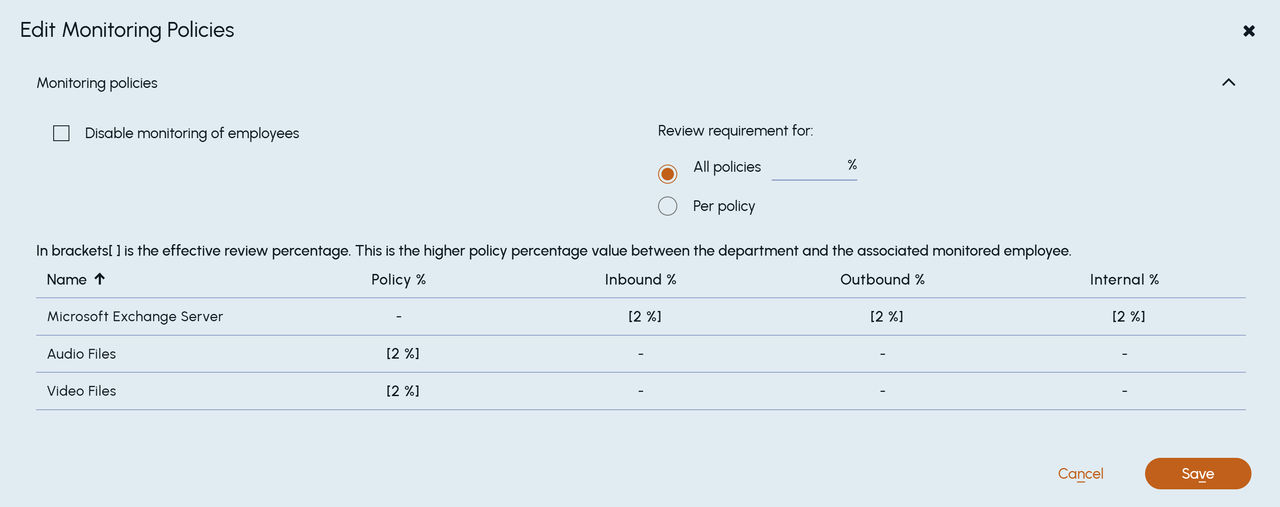
Under Review requirement for , select one of the following option:
-
Select All policies and specify the percentage of items to set the same monitoring policy for all the configured and enabled content sources (message types). For example, if you set the sampling percentage value as 5%, then 5% items of all these services will be captured and provided for review.Note: When new message types are added to the list, the existing monitoring policy automatically apply to them.
-
Select Per policy and specify the percentage of items to set different percentages for each individual content sources (message type). For example, if you set the sampling percentage for one service as 5%, you can set different sampling percentage values for other services.Note: When new message types are added to the list, the default sampling percentage for these types will be set to 2%.
-
For some types of items, such as Exchange and Domino, you can also set percentages on the items that travel in a particular direction:
-
Internal. Selects the items where the author and all recipients are internal to your organization.
-
Inbound. Selects the items where the author is external to your organization and at least one recipient is internal.
-
Outbound. Selects the items where the author is internal to your organization and at least one recipient is external.
-
Click Save.
Related information