
Translating email and attachment content for review
While reviewing emails or attachments, you may encounter non-English content. To address this, Insight Surveillance provides a Translate feature to help you convert non-English text into English. After reviewing the translated content, you can revert it to the original language.
If translation is not enabled for your user account, clicking the Translate button displays the following message:
This feature is not enabled by your administrator. To enable, please do so in Management Console.
To enable translation
-
Navigate to: Arctera Insight Management Console>Policy Management>Archive Options.
-
Scroll to Surveillance Translation.
-
Set the status to Enabled, and clickSave.Note: Text contained within images cannot be translated.
To translate email and attachment content for review
-
In the left navigation pane, click Review.
-
Search for the items you want to review.
Use Advanced FilterandFilters to narrow down your results.
-
On the Email tab, select an individual email in the items grid.
The Preview,Comments, andHistory tabs appear to the right side of the selected email.
Note: If you select multiple emails, these tabs are hidden. Instead, you see options to apply review statuses to all the selected messages.
-
On the Preview tab, do any of the following as needed:
-
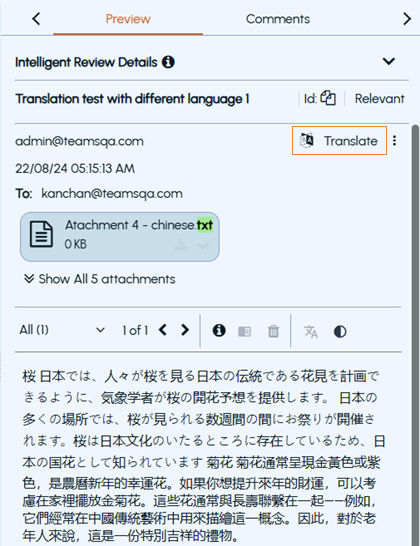
To translate the email body content into English, click Translate as shown in the sample image below:
-
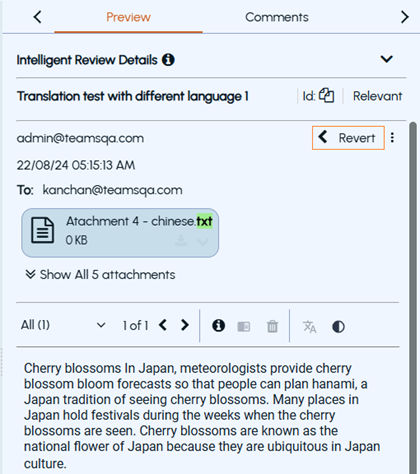
The Translatebutton changes toRevert after translation as shown in the sample image below:
-
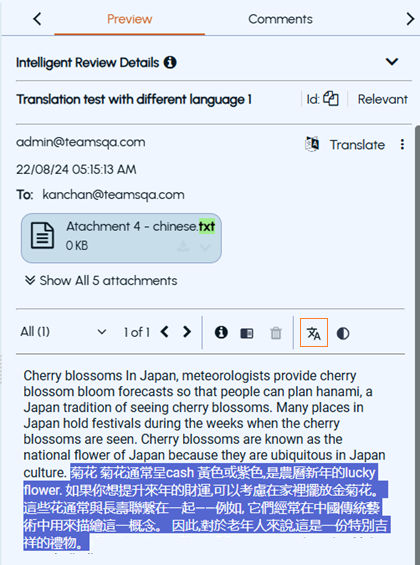
To translate only a part of the content into English, click the Translate the selected text icon as shown in the sample image below:
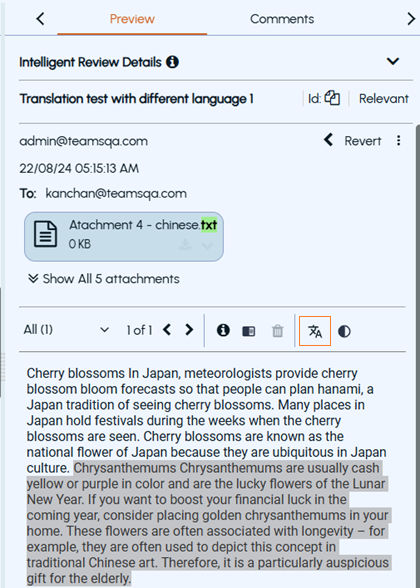
The application translates the content into English, as shown in the sample image below:
-
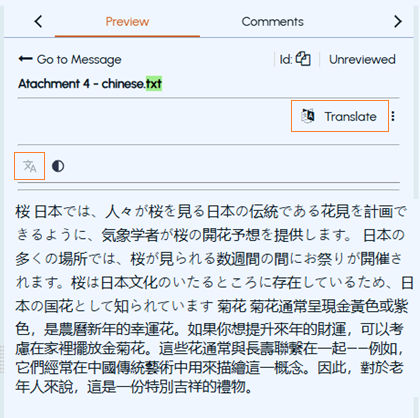
To translate the content of an attachment:
-
Click the attachment.
-
The attachment content appears in the preview panel as shown in the sample image below:
-
To translate the entire content, click Translate.
-
To translate a part of the content, select the text to translate and click the Translate the selected text icon.
-
To return to the original language, click Revert.Note: If the content includes a mix of languages, some text may remain untranslated. Use theTranslate the selected textoption to translate the untranslated text.
Related information