
Viewing history of items
Insight Surveillance provides ready access to historical information on a selected item, such as the dates and times at which the reviewers assigned marks and comments to it.
You must have the Review Messages permission to view the history of items. By default, all reviewers and supervisors have this permission.
To view the history of an item
-
In the left navigation pane, click Review.
-
Filter the items in the review pane.
-
Click Apply.
The application displays a list of review items from the selected departments.
-
During manual review, select the item to view its history details in the reading pane.
-
In the reading pane, click History.
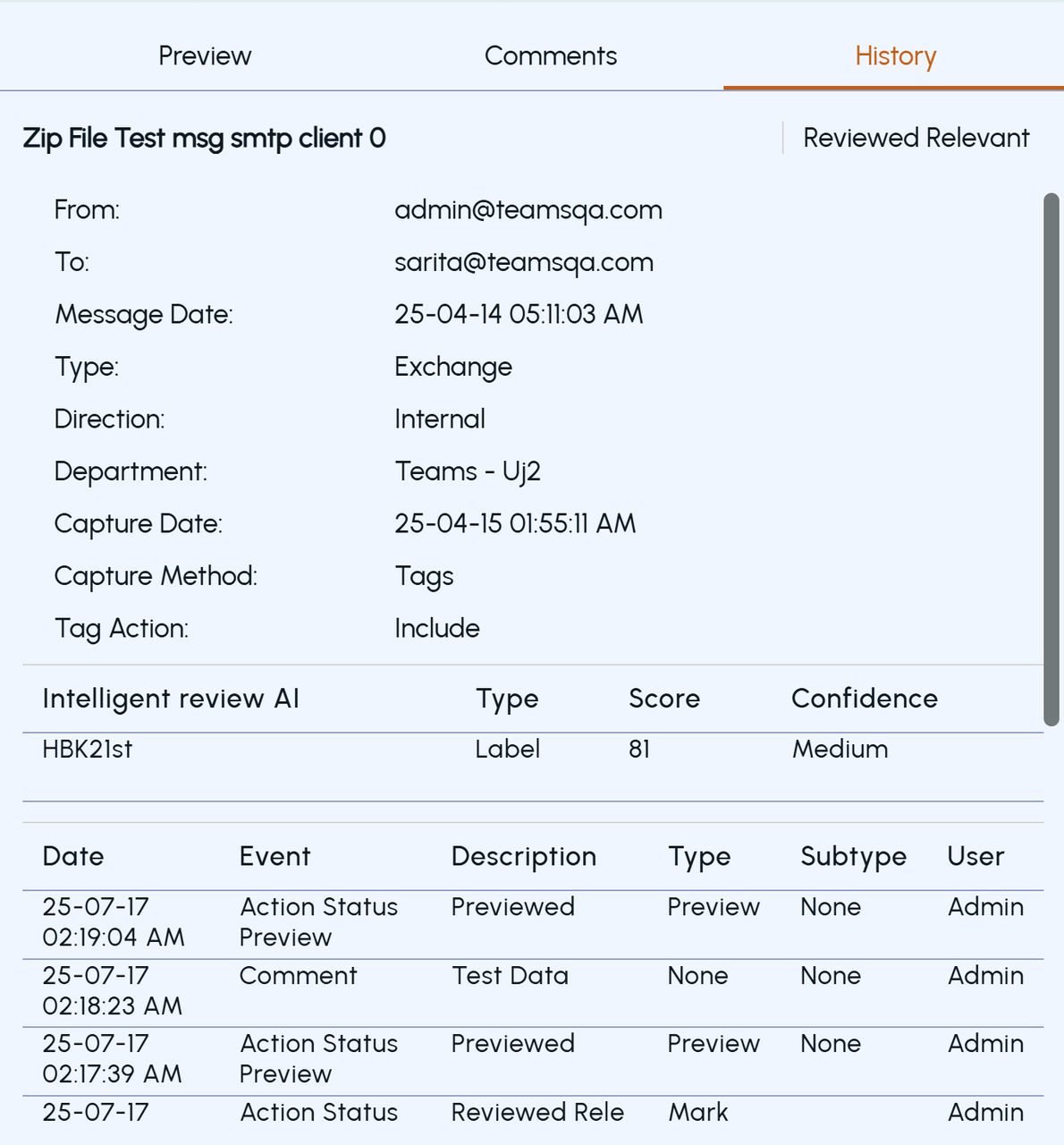
The following details appear as shown in the sample image below:
 |
|---|
-
The subject, date, and details of the sender and recipients.
-
The item type, such as Microsoft Exchange or Bloomberg, and its direction (Internal, External Inbound, or External Outbound).
-
The department in which Insight Surveillance has captured the item.
-
Capture date and method by which the item was captured.
-
The event history, tag actions history, the X-Header history, IR marking and labels history of the item.
-
The reviewer's actions in the Preview pane.
If the administrator has enabled the setting to log preview actions, whenever an item is viewed in the Review pane, Insight Surveillance records the reviewer's preview activity in the item history.
Note: By default, the feature is disabled. To enable this feature, contactArctera Technical Support.
Related information