
Rearranging columns in the item list pane
To rearrange columns in the item list pane
-
In the left navigation pane, click Review.
-
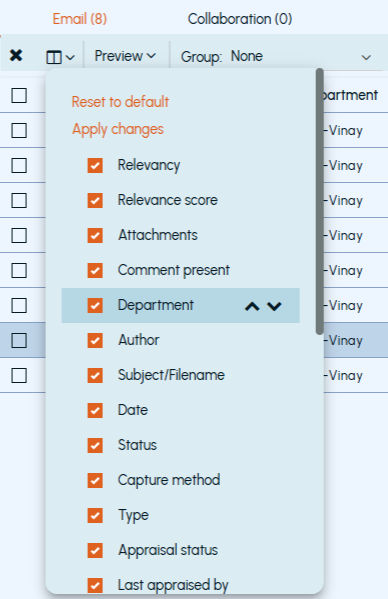
Click Customizeand expand theSelect Columns drop down as shown in the sample image below and select the check boxes adjacent to the column options that you want to move.
-
To change the order of column to left or right in the item list pane, click the UporDownarrows respectively, and clickApply changes.
-
To reset the default arrangement of columns, click Reset to default.
Related information