
Processing
The following options are available for Processing options:
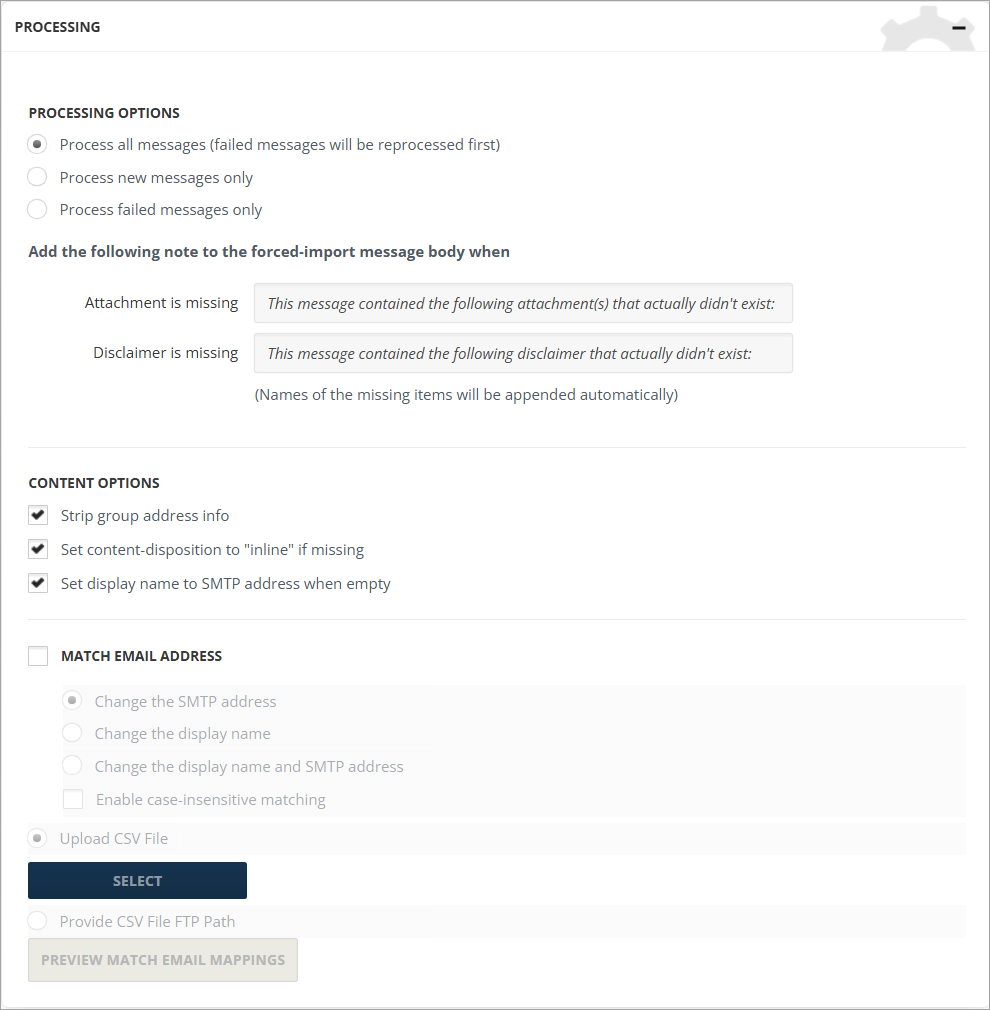
-
Processing Options is mostly used for the troubleshooting purpose.
-
It is advised to use Process Failed Messages Only when there is a big number of failed messages.
-
If there are problems with connection which lead to failed messages, Process All Messages is the preferred choice. If necessary, change this setting to process new segments or failed segments exclusively.
-
Attachment is missing - This line is added to the first line of the reprocessed segments with references to missing attachments.
-
Disclaimer is missing - This line is added to the first line of the reprocessed segments with references to missing disclaimers.
-
Strip Group Address Info - This option is selected by default and applies to the EML collector. With this option, recipients in the header (To, CC and BCC) in an EML file will be removed upon conversion.
-
Set Content-Disposition to inline if missing - This option applies only to the EML source. When processing EML files that have image attachments, Arctera Capture will insert any missing.
-
Content Disposition header fields and set their disposition type to inline so that images will appear in the message body when they are viewed in applications such as Microsoft Outlook.
-
Set display name to SMTP address when empty - Enter the SMTP address in the Display Name field.
Match Email Address - The Match Email Address option can match the existing ID or SMTP Address and replace:
-
SMTP Address
-
Display Name
-
Display Name and SMTP Address
Select Enable case-insensitive matching to match email addresses regardless of letter case.
The CSV file should contain the following columns:
-
Last Name (A)
-
First Name (B)
-
Company Name (C)
-
Old Email (D)
-
New Email (E)
You can provide the matching file from either of the following sources:
-
Upload CSV File - Select and upload the CSV file directly.
-
Provide CSV File FTP Path - Enter the FTP path to the location where the CSV file resides.
For both source types, Arctera Capture validates and previews the file so that you can confirm it is processed correctly. The validation and preview are performed on the Agent side during the import job.
Select Preview to view a sample of the matched records. The preview displays the first 10 records only, for preview purposes.
Note: The preview grid shows the first 10 records for preview purposes only.