
Attachments Configuration
To configure te attachments:
-
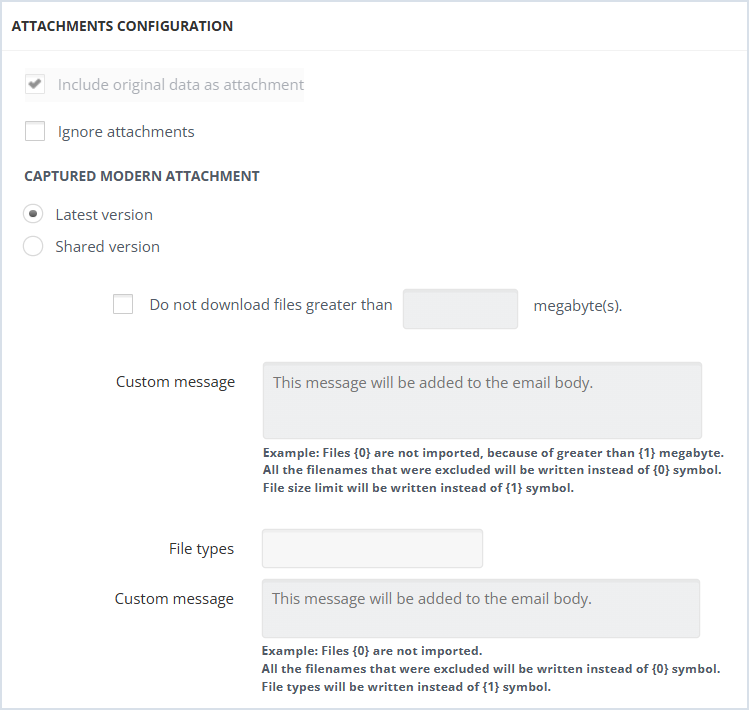
Enable Include original data as attachment to include/exclude original data as attachment.
-
Enable Ignore Attachments to exclude all the attachments from the message. Each message will contain only information and the link of the excluded attachment. This will enhance the collector performance.
-
For Captured Modern Attachments,select:
-
Latest version - to capture the latest saved version of shared document available at collector run time with the message.
-
Shared version - to capture the saved version of the document at the time of sharing in Microsoft Teams with the message.Note: To respect the fidelity of the shared document timestamp, it is recommended to disable the Edit feature in Microsoft Teams.
-
When Do not download files greater than X megabyte(s) is selected, the files bigger than the filled-in number of megabytes, are not downloaded. In Custom Message field, a text for those excluded files can be specified. E.g.,"Files {0} are not imported, because they are greater than {1) megabytes". {0} is used to add the name of the file and {1} is used to add the number of megabytes specified above.
-
In the File Types field, the types of files that should not be downloaded can be specified in the following format: e.g., .txt | .xml. The vertical bar is used to separate the file types.
-
Related information