
Exchange Graph API Target
Capture delivers the data to Exchange Online mailboxes using the Microsoft Graph API. Choose this target when the archive of record is an Exchange Online mailbox, typically a dedicated journal or archive mailbox that a downstream supervision or eDiscovery system reads from.
The Exchange Graph API target replaces the EWS write path ahead of the Microsoft Exchange Web Services deprecation on October 1, 2026. It delivers to the same kind of destination, uses the same folder layout, and offers the same envelope option as the EWS Server Target. What changes is the API underneath and, with it, the authentication model: Graph requires a certificate-based application registration.
The target accepts everything a Capture importer can produce:
-
Email captured as EML is delivered as-is wherever possible, so signatures, headers, and MIME structure remain intact.
-
Non-email content from any other importer (chat, social, voice, and collaboration platforms) is rendered as a message with the item's body, participants, timestamps, and metadata, and its files as attachments.
-
Journal report envelopes, optionally, wrap each item so that recipient and delivery information is preserved in the form journaling-aware archives expect.
Items are filed into a folder you choose in the destination mailbox. The target can create and roll over numbered subfolders under it (
Merge1Data_000, Merge1Data_001, and so on) so that a long-running import never reaches the Exchange per-folder item limit. You can configure several destination mailboxes so that the target can move on to the next one when a mailbox fills up.
Prerequisites
-
A Microsoft Entra ID application registration in the destination tenant, holding the
Mail.ReadWriteapplication permission with admin consent granted. Application permissions are what allow the target to write to a mailbox without impersonating a user. For step-by-step instructions, see Microsoft Entra ID App Creation. -
An X.509 certificate registered against that application, uploaded as a password-protected PFX file. For more information on how to create a certificate, see Creating a Certificate (Private and Public Keys).Note: Certificate-based OAuth is the only supported authentication type. There is no user name and password option.
-
One or more destination mailbox SMTP addresses, and the folder within them to archive into.
Setting up the target
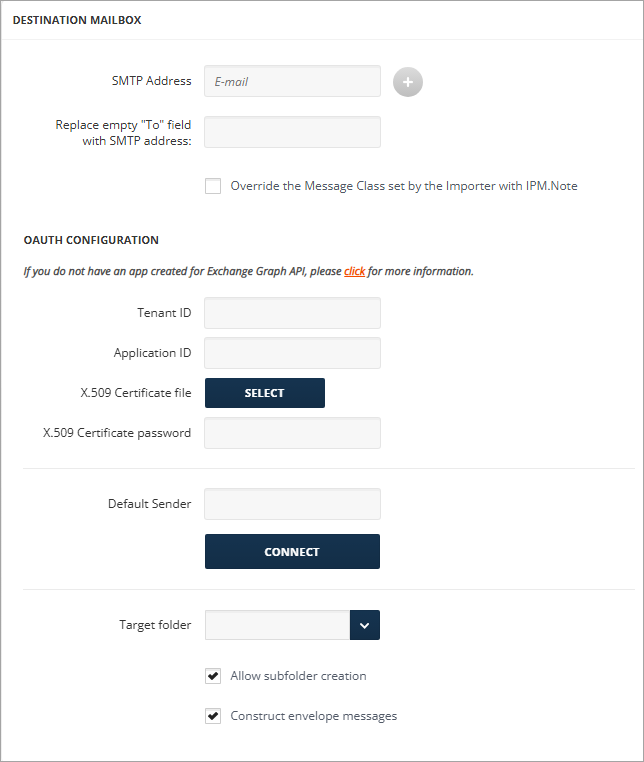
Destination Mailbox
-
Enter the destination mailbox SMTP Address.
-
Click + to add other SMTP addresses. This feature allows for overcoming size and count limitations by distributing the messages across multiple locations instead of using a single one.
-
Enter an SMTP address for the Replace empty "To" field with SMTP address field.
-
Enable the Override the Message Class set by the Importer with IPM.Note checkbox to ensure items are delivered only with the message class IPM.Note. Leave it unchecked to ensure items are delivered with the message class IPM.Note.\<MessageClass\>.
OAuth Configuration
-
Enter the Tenant ID and Application ID of your Microsoft Entra ID application registration.
-
Click SELECT next to X.509 Certificate file and choose the PFX file of the certificate that is registered against the application.
-
Enter the X.509 Certificate password.
-
Specify a Default Sender address for messages with an empty FROM field (up to 250 characters). When it is left blank, the destination mailbox address is used instead.
-
Click CONNECT to get the folder list.
-
Select a Target folder for imported data. The folder may be nested.
-
Leave Allow subfolder creation enabled to have the target create and roll over
Merge1Data_NNNsubfolders under the target folder. -
Leave Construct envelope messages enabled to import the data in the MS Exchange journal report format (the X-MS-journal-report header is also added). It applies to all input formats, EML sources included.
When you have filled in all the fields, click Next.
The configuration is validated when the target is saved: the certificate is loaded and every mailbox is connected to, so an incorrect Tenant ID, a missing consent, or an unreachable mailbox is reported at configuration time rather than mid-import.
Considerations and limitations
-
Fidelity. An email is imported byte-for-byte while it fits within the Graph MIME import limit. Larger items are rebuilt from their parts instead, which preserves the content and attachments but not signatures or complex MIME structure. The threshold counts attachments, not just the body.
-
One tenant per target. A target instance is bound to a single Microsoft Entra ID tenant. To archive into more than one tenant, configure one target per tenant.
-
Primary mailboxes only. The Personal Archive (In-Place Archive) mailbox cannot be targeted.
-
Attachment ceiling. Graph accepts at most 150 MB for a single attachment. An item carrying a larger attachment is reported as a delivery failure for that item and does not stop the import.
-
Message size. The total message size limit is 150 MB. This limit is configurable by the Exchange Online administrator, and the same limit applies to EWS.
-
Folder capacity. Each folder holds up to 999,000 items, below the Exchange per-folder hard limit. When subfolder creation is enabled, the target rotates to the next
Merge1Data_NNNsubfolder automatically. -
Draft flag. An email delivered through the direct MIME import path retains the MAPI draft bit and is displayed as an unsent draft in Outlook. This is a cosmetic limitation of the platform. Items delivered in journal report envelope format are not affected.