
Exporting archived folder emails
You can export items of folders from the selected archives. Upon successful export, the exported items will be downloaded in one or more file segments.
To export archive folder items:
-
In the left navigation pane, select Archives.
-
Search for and select the required Archive. For more details about global search options, see Managing global searches
-
Expand the Active Folders or Folders sections to view all the folders from the selected archives.Ensure that the folders should not be empty if you want to export them. To hide empty folders, select the Hide Empty Folders check box.
-
Right-click on the folder name and click Export.
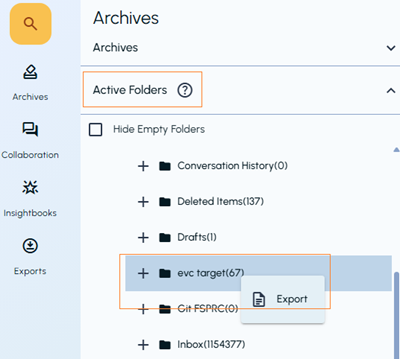 The Select Date Range dialog box appears
-
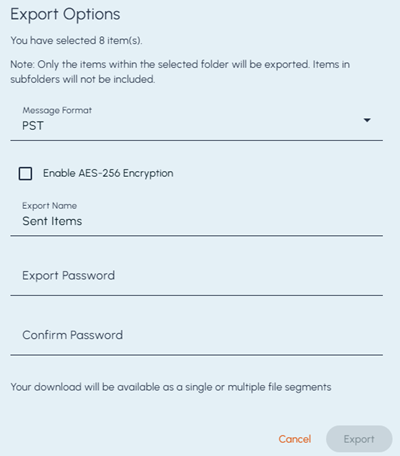
Click the Calender icon to specify the date range to export items exchanged between these dates.The Export Options dialog box appears.
-
Specify the following information:
Field Description Message Format Select the format in which you want to export the items. By default, PST is selected. Enable AES-256 Encryption Select this option to encrypt the exported files using AES-256 encryption. You must then enter and confirm an export password. Export Name Enter a name for the export. Export Password Enter the password to protect the encrypted export. Confirm Password Re-enter the export password. The value must match the password entered in the Export Password field. -
Click Export.
-
Save the export file to the required location on your computer.