
About InsightBooks
Overview
The InsightBooks feature organizes emails and collaboration messages into curated collections based on search criteria. It enables contextual analysis and targeted responses through AI-powered queries. Users can create new InsightBooks or access default ones, such as Week in Review and Return from Vacation, for quick review and insights. Refer to the sample image below.
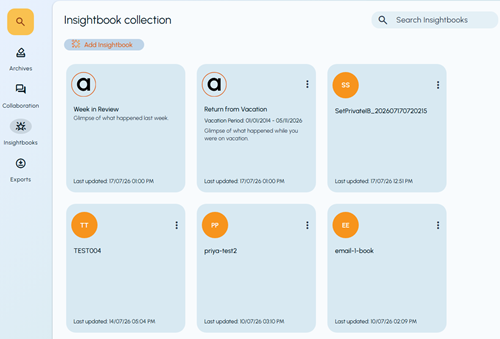
InsightAI analysis is limited to Emails and Collaboration messages analysis within an InsightBook. The InsightBooks feature streamlines the process of analyzing communications by allowing users to apply GenAI prompts (as it is integrated with InsightAI) to summarize key topics, extract action items, or review trends. It improves productivity by consolidating relevant messages into one place that enables users to catch up efficiently after a break or review past activity with minimal effort. Sharing and collaboration options allow teams to use common filters and notes for consistent understanding. Shared InsightBooks can be updated or deleted only by their creators, and AI-generated notes are read-only.
Prerequisites
The InsightBooks feature is available if:
-
Application level setting: The Arctera Management Console administrator enables the Personal Archive InsightBooks archive option in Management Console > Policy Management > Archive Options.
-
User account level setting: After application level setting is enabled, the Manage InsightBooks setting is configured in Management Console > Configuration > Manage InsightBooks.For more details, refer to the Arctera Management Console Help.
Understanding InsightBook interface
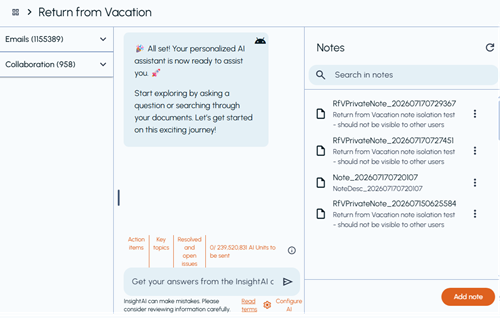
When you open an InsightBook, the following primary panels are displayed:
| Pane | Description |
|---|---|
| Left pane | Displays the emails and collaboration items included in the InsightBook. The items are grouped under Emails and Collaboration, with the corresponding item counts displayed for quick reference. |
| Middle pane | Displays the default prompts, including Summarize, Summarize by speakers, Topics, Sentiment, Timeline, and Timeline Table. You can also enter custom prompts in the input box at the bottom, save AI-generated responses as notes, and view the number of AI units consumed. |
| Right pane | Lets you add, view, and search for notes related to the InsightBook. You can save AI-generated responses as notes for future reference and mark notes as private. |