
Creating Notes in InsightBooks
You can create notes in an InsightBook by manually adding a note or by saving an InsightAI-generated response as a note.
In a shared InsightBook, co-workers can view notes added by the author unless the notes are marked as private. Only the author can delete a shared note or change its privacy setting. Notes in the default folders, Week in Review and Return from Vacation, cannot be marked as private.
To create a note manually:
-
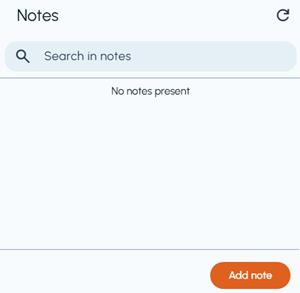
Open the InsightBook and navigate to the Notes pane.
-
In the Notes pane, click Add note.
-
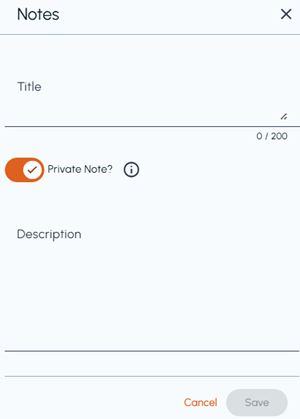
Enter a unique title of up to 200 characters.
-
Enter a description for the note.
-
To make the note private, turn on the Private Note? switch.
-
Click Save.The note appears in the Notes pane.
To create a note from an InsightAI-generated response:
-
Open the InsightBook.
-
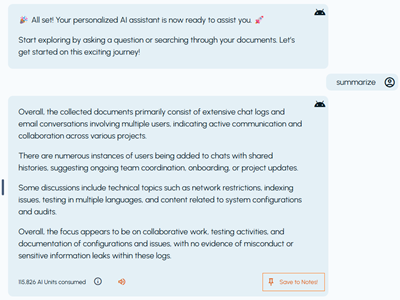
In the middle pane, enter a prompt for the information that you want InsightAI to analyze.
-
After InsightAI generates the response, click Save to Notes! in the response pane.
-
To make the note private, turn on the Private Note? switch.Note: Notes in the default folders, Week in Review and Return from Vacation, cannot be marked as private.
-
Click Save.The generated response is saved as a note and appears in the Notes pane.