
Hit highlighting
Hit highlighting visually identifies relevant terms in the item preview pane. It highlights terms that match the search criteria and terms associated with tags, helping you quickly scan the email content and locate relevant information. Highlighting applies to the subject line, message body, attachment name, and text or HTML preview of attachments. However, navigation between occurrences is available only within the message body.
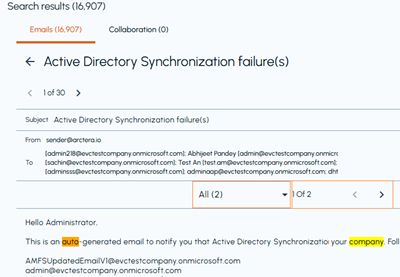
Search terms are highlighted in orange, and terms associated with tags are highlighted in green. Hover over a highlighted term to determine whether it originated from a search query or a tag.
Capabilities
Hit highlighting provides the following capabilities:
-
Supports stop words and special characters.
-
Handles multi-byte characters. Currently, it supports only Japanese language.
-
Highlights terms that extend across line breaks.
-
Applies highlighting in Native Viewer.
-
Works for tenants where stop-word indexing is enabled.
-
Supports proximity-based searches.
-
Provides navigation between highlighted terms.
Limitations
Hit highlighting has the following limitations:
-
Search terms that contain leading or trailing special characters are not highlighted.
-
Stop words are included in the highlighting and occurrence count in Native Viewer.
-
Hit highlighting is not supported in Query Search.
-
Non-visible metadata, such as image information and indexed item metadata, cannot be highlighted.
Using hit highlighting
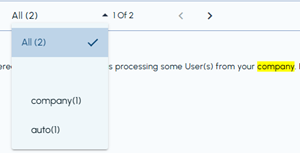
The preview pane provides a drop-down list that displays each matched term and its number of occurrences. You can use this list to review all highlighted terms or focus on a specific term.
To view highlighted terms:
-
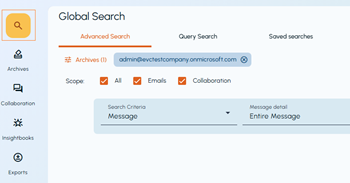
In the left navigation pane, select Search.
-
Perform a search by using one of the following methods:
-
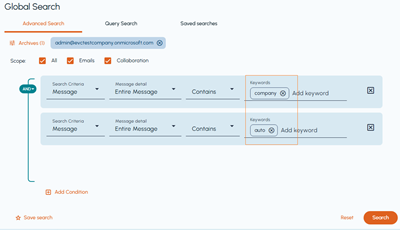
In Query Search or Advanced Search, enter the required keywords while configuring the search criteria. After entering the keywords, click anywhere outside the Keywords field to enable the Search button, and then click Search.
-
Open Saved Searches, enter a keyword in the search field, and then press Enter.
-
-
In the items grid, click the item that you want to review.The item opens in the preview pane, and the keywords used in the search are highlighted.
-
In the preview pane, do the following as required:
-
Click All to open the list of highlighted terms and view the number of occurrences of each term.
-
Select All to highlight every matched term, or select a specific term to highlight only its occurrences. The occurrence indicator displays the current occurrence and the total number of occurrences for the selected term.
-
Click the previous or next arrow to navigate between occurrences in the message body.
-