
Reviewing exports and downloading items
You can review the export details and download items (emails and collaboration messages) of the exports.
To review export details and download items:
-
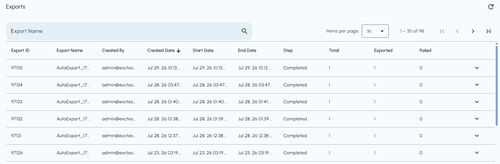
In the left navigation pane, select Exports.A list of created exports and corresponding details appears.
-
Use the column headings to identify each export, review who created it and when it ran, track its status, and compare the total, exported, and failed item counts.
-
Hover over a sortable column heading, and then click the column heading to arrange the records in ascending or descending order.
-
Click the Refresh icon in the upper-right corner to reload the page and display the latest export information.
-
-
Search for and select the export you want to review.
-
To view export details, click the Expand icon in the corresponding export batch row.(To hide the displayed details, click the Collapse icon.)The Export Details section appears below the row and displays information such as the export status, type, archive, date range, item counts, download size, folder path, encryption status, creator, and relevant dates.
-
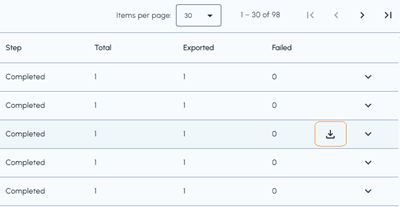
To download items from active folders, hover over the required export row and click the Download icon.The Download icon appears only when you hover over the row.
 Save the downloaded file in the appropriate folder on your computer.