
Restoring emails
Important!
Before restoring emails from Arctera Personal Archive to your Outlook mailbox, it is important to understand how timestamps are displayed in classic Outlook for Windows and new Outlook for Windows.
When an email is restored from Personal Archive to your inbox, the date displayed for the restored email differs between classic Outlook for Windows and new Outlook for Windows. When an email is restored to classic Outlook for Windows, the email retains its original sent date, and the restoration date is not displayed. In new Outlook for Windows, the date and time of restoration are displayed as the email timestamp. This difference is expected and results from Outlook behavior.
Restoring an individual email
To restore an individual email:
-
On the Search result pane, search for and select an email you want to restore.
-
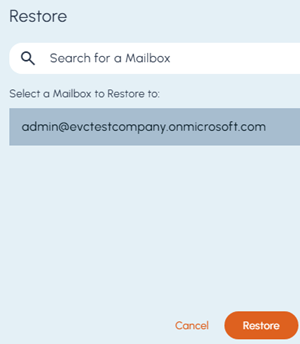
Hover over an email and click the Restore this message icon. The Restore window appears.
-
Search for and select the required mailbox, and click Restore.
Restoring multiple emails
To restore multiple emails:
-
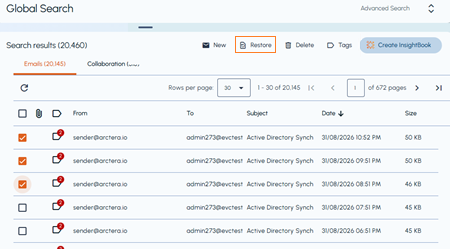
On the Search result pane, search for and select one or more emails you want to restore.
-
On the toolbar, click Restore.
-
After restoring, verify that the expected result is reflected.