
Updating InsightBooks
Only the InsightBook owner can update it; shared users cannot perform this action. Updating an InsightBook lets the owner modify its name, description, and InsightAI configuration.
To update an InsightBook:
-
In the left navigation pane, select InsightBooks.The InsightBooks Collection page appears.
-
Locate the InsightBook that you want to update.
-
Click the More options icon (kebab icon) on the InsightBook card, and then select Update.
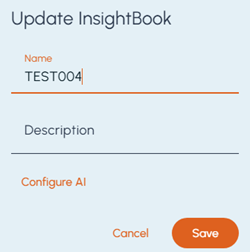
 The Update InsightBook dialog box appears.
-
Modify the InsightBook name and description as required.
-
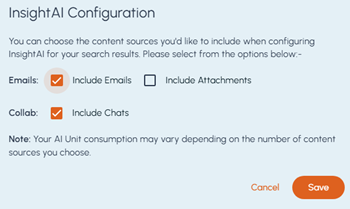
To update the content sources included in the InsightBook, click Configure InsightAI.The InsightAI Configuration dialog box appears.
-
Select or clear the following options as required:
-
Emails: Selected by default to include emails in the InsightBook. Clear this option to exclude emails.
-
Include Attachments: Not selected by default. Select this option to include email attachments in the InsightBook.
-
Collab: Selected by default to include collaboration messages in the InsightBook. Clear this option to exclude collaboration messages.
-
-
Click Save in the InsightAI Configuration dialog box.
-
Click Save in the Update InsightBook dialog box.A notification is displayed to confirm that the InsightBook is updated successfully.