
Enabling a customer for the MYOK feature
During the provisioning of a new customer, the Management Console Super Administrator can access the MYOK option on the Company Details page. After the customer has been created, this option becomes unavailable.
Note: The customer account administrator is not involved in this procedure. It is performed entirely by the Management Console Super Administrator. The customer administrator receives a service alert on the Management Console interface upon logging in.
To enable a customer for the MYOK feature:
-
In the left navigation pane, select Customer Service>Customers
-
To enable MYOK while adding a new customer, click Add Customer.
-
To enable MYOK for an existing customer, search for and select the customer, then click Edit.
The Company Details page appears.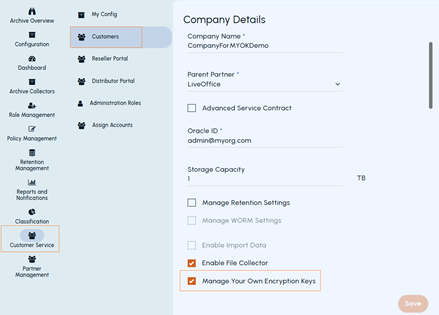
-
-
Specify the required customer details.
-
Click SaveNote: After saving the customer account, the application sends a service alert to the customer. The Management Console Super Administrator must then assign theAdminrole to the customer account user. Only after receiving the Admin role can the customer user independently perform the required next steps.
-
To assign the Admin role to the customer account, select Customer Service>Customers. The saved company details are displayed.
-
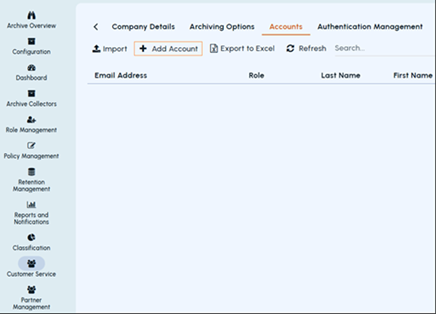
Navigate to the Accounts tab and click on Add Account
-
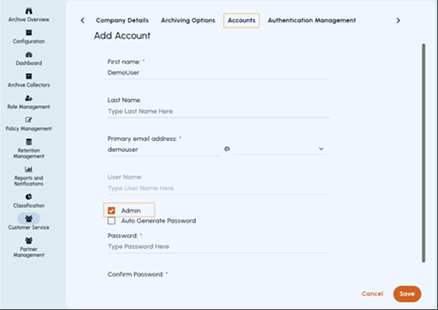
Specify the required details, select the Admin check box.
-
Click Save
Related information