
Generating the AI Wallet Statement
As an administrator, you can generate an AI wallet statement to track AI unit consumption by applications and their associated features. Each recorded transaction can be traced to a specific user account for review.
To generate the AI wallet statement:
-
In the left navigation pane, select Reports and Notifications
-
Access the Usage tab.
-
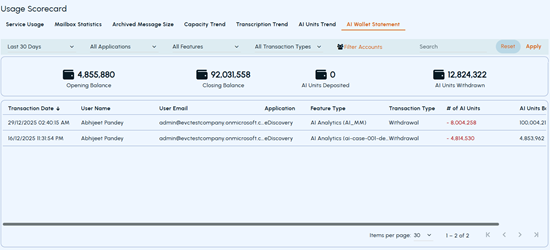
On the Usage Scorecard page, select the AI Wallet Statement tab.By default, the page shows a 30-day summary of AI unit consumption by all applications, features, and associated user accounts.
-
To view the specific record, do the following:
Duration Select the period for which you want to view AI unit consumption. All Applications Select the application for which you want to view AI unit consumption. All Features Select all or a specific feature of the selected application. All Transaction Types Select All or choose a specific transaction type to view only deposited or only withdrawn AI units. Filter Accounts Click to open the Add/Remove Accounts pop-up, and then select the required user accounts. Search field Enter keywords to filter the records by user name or email. Note: If required, click Reset to clear the selected filters and apply new filter selections. -
Click Apply to view the record based on the selected filters.Scenario: To view AI unit consumption by the AI Analytics feature of the Arctera eDiscovery applicationa. From the application drop-down list, select eDiscovery.b. From the features drop-down list, select AI Analytics.c. Select a specific user account if required.d. Click Apply to review the AI units transactions.
Related information