
Logging in and logging off
Logging in
To log in to Arctera Management Console:
-
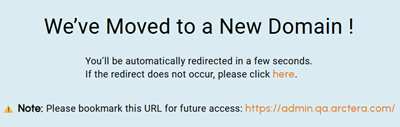
In a supported browser, go to your Arctera Management Console URL.If you do not know the URL or do not have access, contact your system administrator. For supported browsers, see Arctera Unified Platform Compatibility List.Note: Starting with the April 2026 release, the application uses a new domain. If you use a URL with the previous domain, an informational page appears and is expected to redirect you automatically. If it does not, click the link on the page, and then bookmark the new URL shown in the note. Do not bookmark the click here link.
-
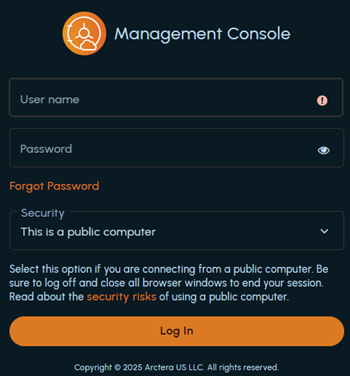
Enter your username and password.Note: Consecutive incorrect password entries lock your account. If you forget your password, see Resetting a forgotten password.
-
Under Security, select one of the following options:
Option Description This is a public computer Prompts for your credentials at every login and logs you out after 20 minutes of inactivity. This is the default option. This is a private computer Caches your credentials for one year so that you can skip the Login page, and logs you out after 10 hours of inactivity. To clear the cached credentials, log off. Note: When a session reaches its idle limit, an alert appears. Click Extend within 60 seconds to extend the session by another 20 minutes (public computer) or 10 hours (private computer), or click End to end it. If you do not respond, the session ends automatically. -
Click Log In
-
If multi-factor authentication (MFA) is enabled for you, complete one of the following:
-
Email OTP: A one-time password (OTP) is sent to your registered email address. Type it in the OTP field within 5 minutes; copy-paste is not allowed. If the OTP expires, click Resend OTP to get a new one.
-
Authenticator app (TOTP): The Authenticator Setup page appears. At your first login, scan the QR code with Google Authenticator or Microsoft Authenticator. See Setting up the Authenticator app. Click Continue, enter the time-based OTP from the app in the OTP field, and click Continue.
Administrators enable or disable MFA at the user and tenant level. -
Setting up the Authenticator app
Note: If you previously created an entry for the same user in the app, remove it and complete the setup again.
To set up Microsoft Authenticator:
-
Install the app, and allow notifications if prompted.
-
Open the app, tap the plus (+) icon, and select Work or School account or Other account.
-
Scan the QR code on the Arctera Unified Platform authentication page, or log in with your application credentials and follow the on-screen instructions.
To set up Google Authenticator:
-
Install the app, and allow notifications if prompted.
-
Log in with your Google account, scroll down, and tap the plus (+) icon.
-
Scan the QR code on the Arctera Unified Platform authentication page.
About the New Features window
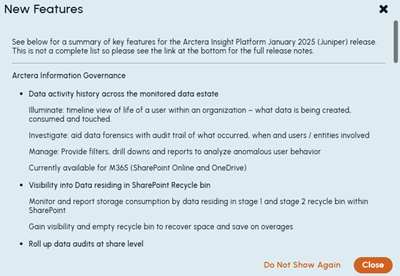
After you log in, the New Features window shows the latest release updates for Arctera Management Console, Arctera eDiscovery, Arctera Personal Archive, Arctera Capture, and Arctera Surveillance. (The image below is just a sample screenshot for reference.)
-
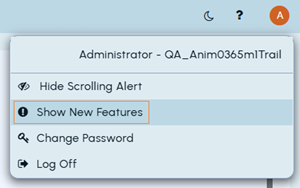
Close hides the window for now. To reopen it, click the profile icon and select Show New Features.
-
Do Not Show Again hides the window until the next release updates. To show it again earlier, contact your system administrator.
-
View Detailed Release Notes opens the complete release notes.
Logging off
To log off from Arctera Management Console:
-
In the upper-right corner, click the user profile icon.
-
Click Log Off