
Generating message reconciliation report
Only users for whom the Reconciliation Report Notifications feature is enabled can generate this report. To enable this feature, contact your system administrator.
The reconciliation data table provides a detailed view of items that are received through journaling addresses and collected by the archive collectors configured for the user. This information is also represented graphically in a bar chart, which categorizes the data by collector and references the entries in the Collectors List for correlation.
Users can generate, view, and download reconciliation report that provides users with a real-time insight into message flow and reconciliation metrics, enhancing their operational control and efficiency through direct data access.
To generate a message reconciliation report:
-
In the left navigation pane, select Reports and Notifications > Reports.
-
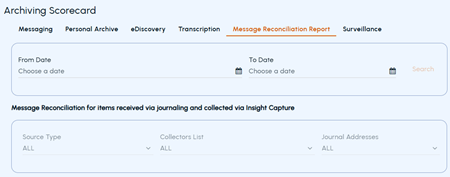
On the Archiving Scorecard page, select the Message reconciliation report tab.
-
Specify the duration (From date-To date) for which you want to generate a report.
-
Click Search to view the transcription-specific statistics.
-
If the list is extensive, follow these steps for your convenience, and click Search.
-
From the Source Type drop-down, choose a specific source type or select ALL to include all types.
-
From the Collectors List drop-down, choose a specific collector or select ALL to include every configured collector.
-
From the Journal Addresses drop-down, choose a specific journaling address or select ALL to include all addresses.
-
On the page navigation bar, perform the following as needed:
-
Select the number of items to display per page. The application displays 100 items per page by default.
-
Use the arrows to move to the first, previous, next, or last page.
-
The reconciliation data table and graph update automatically based on the selected criteria.Reconciliation data in tabular format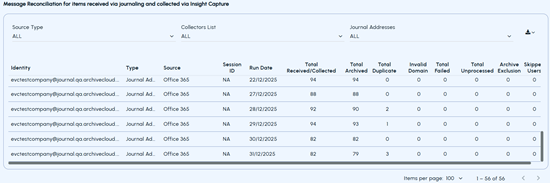 Refer to the table below to understand columns and their descriptions.
Column Name Description Identify Displays the name or identifier of the reconciliation entry. Type Displays the type of source configured for reconciliation, such as a collector. Source Displays the source system from which the messages were collected. Session ID Displays the unique identifier of the reconciliation session. Run Date Displays the date on which the reconciliation process was run. Source Reconcile Count Note: This column is not available for all users. If you want to get this functionality, contact your system administrator or Arctera Support.Displays the total number of messages that the source system (such as Exchange, Gmail, Office 365, and so on) reports as sent or collected during reconciliation.Displays N/A if the source count is unavailable. Source Individual Messages Note: This column is not available for all users. If you want to get this functionality, contact your system administrator or Arctera Support.Displays the number of individual or unique messages reported by the source system, excluding messages represented as part of a batch or group.Displays N/A if the individual message count is unavailable. Total Received/Collected Displays the total number of messages received or collected from the source system. Total Archived Displays the total number of messages successfully archived. Total Duplicate Displays the total number of messages identified as duplicates. Invalid Domain Displays the total number of messages associated with an invalid domain. Total Failed Displays the total number of messages that failed during processing or archival. Total Unprocessed Displays the total number of messages that were received but not processed. Archive Exclusion Displays the total number of messages excluded from archival. Skipped User Displays the total number of messages skipped because of user-related conditions. Reconciliation data in graphical format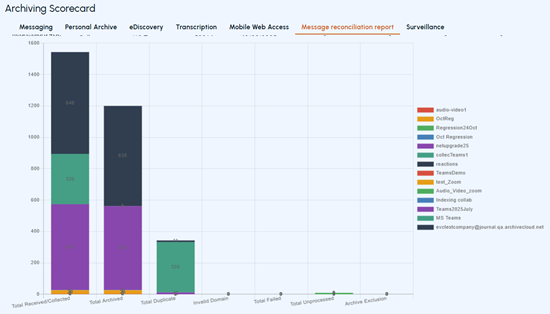
-
-
To download the report, click the Download icon (provided near the Journal Addresses drop-down list), and then select either PDF or CSV as the format.
Related information