
Generating a capacity trend report
While adding a customer or a partner profile in Management Console, the administrator specifies the number of licenses, with a default storage limit of 15 GB per license. For instance, provisioning 10 licenses results in a default storage capacity of 150 GB. Additionally, the administrator can allocate a requested amount of storage to customers and their partners.
Although the overall storage capacity usage can be checked during the editing of customer or partner profiles, situations may arise where they utilize either less or more than the allocated storage, potentially impacting them financially through overage charges. Consequently, customers or partners may seek a report to make decisions regarding their storage capacity.
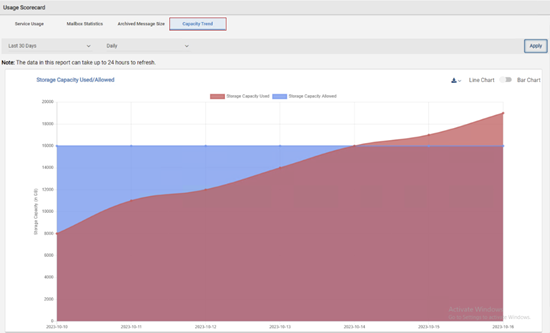
The Capacity Trend report provides the allowed and consumed storage capacity details for customers or their partners in graphical or chart format. This report helps customers or their partners understand their proximity to the licensed (allowed) and actually used storage limit. By reviewing this report, they can proactively make decisions, such as acquiring extra storage or receiving advance notifications to prevent overage charges.
The Capacity Trend tab provides a storage capacity trend report based on date range and frequency. You can run and export reports based on the following services.
Note: Data can take up to 24 hours to refresh once you've enabled or disabled mailboxes.
To generate a storage capacity trend report:
-
In the left navigation pane, select Reports and Notifications>Usage
-
On the User Scorecard page, select the Capacity Trend tab.
-
Select a predefined duration, or select Custom if you want to specify a start and end date for the report.
-
Select the predefined frequency (Daily, Weekly, Monthly, Quarterly, or Yearly.)
-
Click ApplyThe application generates a report indicating the licensed (allowed) and actually utilized storage limit by the customer or their partners, as shown in the sample image below.
-
If required, switch between the Line Chart and Bar Chart display options to view chart in the report.
-
To export the report in EXCEL, PDF, CSV, or WORD format, click the Export icon.
Related information