
Configuring Google Collection collectors
The Google Collection collector enables administrators to archive enterprise-level Google Workspace data, including Google Chat messages, Gmail, and Google Drive content. When configured, the system automatically creates separate collector instances for each selected data source. Each instance uses a corresponding suffix: -Chat, -Gmail, or -Drive.
Prerequisites
Before configuring the Google Collection collector, ensure that the Google Workspace Collection secondary service is enabled for your account. To verify, in the Arctera Management Console, navigate to Configuration > Services, and confirm that the Google Workspace Collection secondary service is selected.
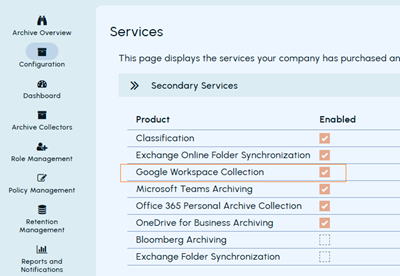
Enable the Google Workspace Collection Service
A customer user account can view the Google Collection collector only if the Google Workspace Collection secondary service is enabled for the account in the Arctera Management Console. As a super administrator, you must enable this service for the required customer account. Upon enabling, you can configure the collector to collect data.
To enable the Google Workspace Collection Service:
-
Log in as a super administrator in the Arctera Management Console.
-
In the left navigation pane, click Customer Service, and select the Company Details tab.
-
Under the Admin Account Details section, in the Secondary Services, select Google Workspace Collection.
-
Click Save.The administrator from the customer's side can now view the Google Collection card in Archive Collectors.
Configure the Google Collection archive
To configure the Google Collection archive:
-
In the left navigation pane, select Archive Collectors.
-
On the Archive Collectors page, click Add collector to view available collector cards.Note: When adding the first collector, the Add collector button appears in the center of the page. If one or more collectors already exist, it appears in the upper-right corner. If you select an unsupported collector, the Configure button is disabled.
-
Select the Google Collection card and click Configure.
-
In the Add Importer dialog, specify a unique name and description for this archive collector.The Google Workspace Account Provisioning page appears.
-
In the Impersonate User Email field, specify the email address of a Google Workspace user who has access to the data you want to archive.The collector uses this account to access and collect data from Google Workspace. The service account does not access data directly; it uses this user account's permissions to perform the collection.
-
Click Upload Certificate to select an existing certificate (JSON file) or upload a new one. The certificate contains the service account credentials required to securely connect to Google Workspace.
-
Click Test Connection to validate the configuration.Note: You must test the connection before saving to verify that the API client has the required scopes configured. The Save option remains disabled until the connection test is successful. For more information about creating a Google Cloud service account and configuring domain-wide delegation, follow the instructions provided in the user interface.
-
Upon successful connection, click Save.
-
Verify that the configured Google Collection archive collector appears in the collectors list.In the left navigation pane, go to Archive Collectors. In the Search field, enter the collector name and confirm that it is listed.
After successful configuration, this collector can be added to Arctera eDiscovery for archiving Google Chat, Gmail, and Drive data.