
Editing managed tags
When creating a managed tag, you cannot assign users or set permissions to allow them to view emails linked to managed tag or remove the tag from emails. Administrators, reviewers, and users cannot view emails linked to this tag or remove the tag from emails unless they are explicitly granted permissions. Therefore, you need to edit the tag to specify users and set permissions for them.
Note: If no permissions are set, only you (the creator of the managed tag) can view emails linked to it or remove the tag from emails.
Besides this, you can also modify the tag name, assign or remove policies to the tag.
To edit a managed tag:
-
In the left navigation pane, select Configuration>Managed Tags
-
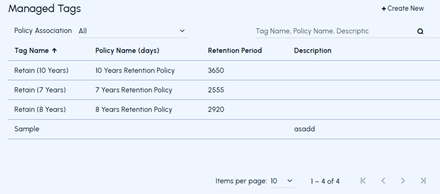
On the Managed Tags page, click on the tag to edit its details.
 Tag details appear as shown in the sample image below.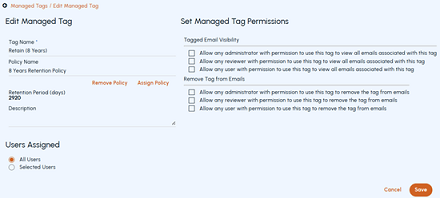
-
In the Tag Name field, modify the tag name if needed.
-
In the Policy Name field, if the policy is already assigned, the policy name is displayed. One tag can have only one policy assigned. You cannot assign multiple policies to one tag.
-
To change the existing policy, click Assign Policy. See Associating a retention policy with a policy target.
-
To remove the already assigned policy, click Remove Policy.
The retention period and description defined in the policy associated with the tag is displayed. -
-
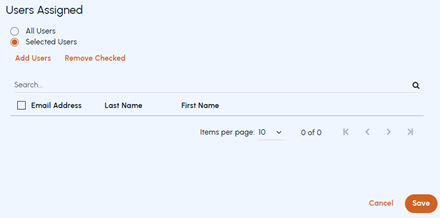
Under Users Assigned section, select Selected Users to specify tag users.
-
To add new users, click Add Users , and select the required users from the list.
-
To remove users who are already added, select the users and click Remove Checked.
Note: Removing a user prevents them from viewing messages assigned to that tag. The application displays a confirmation prompt. click **OK **to confirm or Cancel to stop the removal. -
-
Set managed tag permissions as needed.
-
Under Tagged Email Visibility , select who can view emails linked to this managed tag. Select one or more options mentioned below.
-
Select to allow all administrators with permission to use this tag.
-
Select to allow all reviewers with permission to use this tag.
-
Select to allow all users with permission to use this tag.
-
-
Under Remove Tag from Emails , select who can remove this tag from emails. Select one or more options mentioned below.
-
Select to allow all administrators with permission to use this tag.
-
Select to allow all reviewers with permission to use this tag.
-
Select to allow all users with permission to use this tag.
-
-
-
Click Save
Related information