
Changing your profile password
You can change the password that you use to access Arctera Management Console at any time.
Note: Changing your password for Arctera Management Console also changes your password for other Arctera Unified Platform products.
Your new password must meet your organization's password policy:
-
Default password policy: At least eight characters, including two of the following character types: a number between 0 and 9, a lowercase letter, an uppercase letter, or a non-alphanumeric character.
-
Advanced password policy: The requirements of that policy. See Configuring an advanced password policy.
To change your password:
-
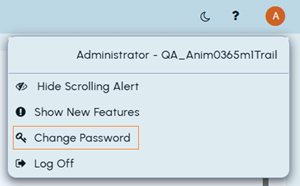
In the upper-right corner of the page, click your user profile icon.
-
Click Change Password
-
In the Password Change dialog box, in the Old Password field, enter your current password.
-
In the New Password field, enter your new password.
-
In the Confirm New Password field, enter your new password again.
-
Click Save