
Capture Notifications
The Capture Notifications tab allows system administrators to configure the Arctera Capture-specific notification preferences and view related event notifications in the Management Console.
This tab is available under Reports > Notifications only if any of the following services is enabled:
-
Capture Primary Service
-
OneDrive for Business
-
Microsoft Teams Secondary Service
To view the Arctera Capture-specific notifications:
-
In the left navigation pane, select Reports and Notifications>Notifications, and access the Capture Notifications tab.
-
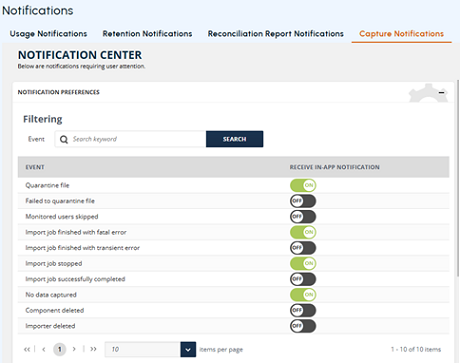
Configure the notification preferences.On the NOTIFICATION CENTER page, expand the NOTIFICATION PREFERENCES section by clicking the plus (+) icon or the section header. The list of available events is displayed.
-
To find a specific event, use the navigation arrows to move between pages, or enter a keyword in the Event field and click Search
-
For the searched event, use the Receive In-App Notification toggle. Turn ON to enable notifications for the event, turn OFF to disable it. Repeat the steps to configure notification preferences for additional events as and when needed.
-
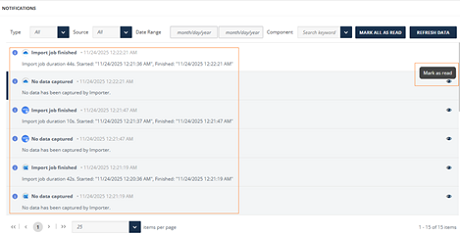
After enabling the required events, scroll down to view the NOTIFICATIONS section.The system displays notifications based on the configured event preferences as shown in the sample image below.
-
Click Refresh Data to load the latest notifications.
-
If the list is extensive, use the available filters to refine the results. You can sort notifications by Status(Read, Unread, Failure, Warning, Info, Success),Source(System, Importer),Component, or** time period**. Use navigation arrows to move between the pages.
-
To mark all displayed notifications as read, click MARK ALL AS READ. To mark individual notification as read, click the eye icon next to a notification.
-
Related information