
Configuring the usage notifications feature
To configure the usage notifications feature:
-
In the left navigation pane, select Reports and Notifications>Notifications
-
Select the Usage Notifications tab, and click Edit
-
Enable notificationsTo enable notifications, slide the switch to the right.
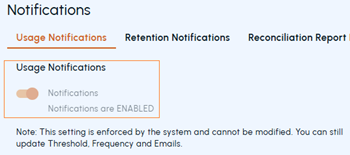 Note: After this feature is enabled, it cannot be disabled. The restriction is enforced at the system level to ensure continued compliance and operational awareness. Critical alerts remain active so administrators are always aware of capacity risks. However, administrators can adjust the thresholds and frequency at any time.
 -
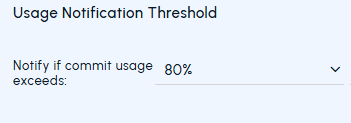
Set notification thresholdIn the Notify if committed usage exceeds field, select the desired threshold percentage (for example 80%) from the predefined values.
-
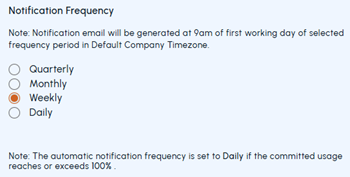
Set notification frequencySelect one of the following intervals:
-
Quarterly — Notifications are sent on the first Monday of each quarter. The quarters start in January, April, July, and October.
-
Monthly — Notifications are sent on the first Monday of each month.
-
Weekly — Notifications are sent every Monday. This setting is the default frequency.
-
Daily — Notifications are sent every day.
Note: Notification emails are sent at 9:00 A.M. in the default company time zone. If committed usage reaches or exceeds 100%, the notification frequency is automatically set toDaily. -
-
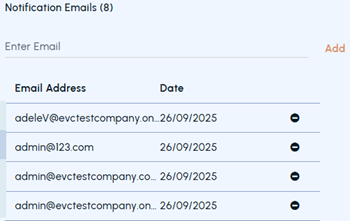
Manage recipientsUnder Notification Emails , do the following as needed:
-
To add an address, enter the email address and click Add.
-
To remove an email address, select the email address and click the Remove icon in the corresponding row.
-
-
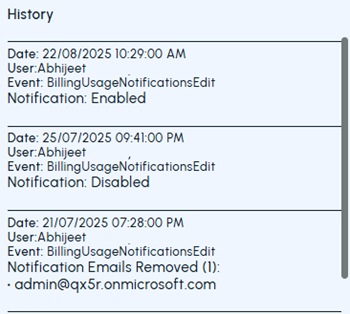
Track the history of configuration changesThis is a read-only section. You can monitor the logs such as who made changes, when they were made, and what updates were applied.
-
Click Save
Related information