
Assigning the administrator roles and privileges to a user account
By default, all archive accounts that you create in Management Console are automatically assigned the Accounts role. If required, you can assign the built-in or custom roles you created to a user account.
To assign the administrator roles to a user account:
-
In the left navigation pane, select Role Management>Assign Accounts
-
Search for the user account to which you want to assign the administrator role.The Role Change page appears. To search for the required user account, you can use any of the following methods. The filtered options appears automatically.
-
Quick search: Enter the user name or email of the user account in the search field, and click the Search icon.
-
Advanced search: In the corresponding fields, enter the email, name, or role, and click Apply.
-
Role-based search: Select a role in the Roles section. User accounts with that role will be filtered.
-
-
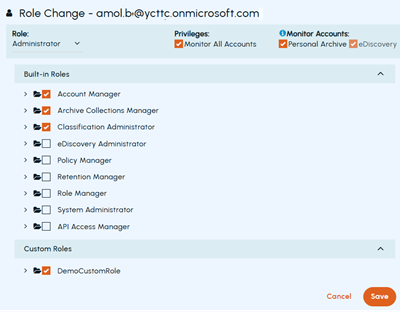
In the Role drop-down, select Administrator
-
In the Privilege field, select the Monitor All Accounts check box.Administrators can control the visibility of monitored accounts in Arctera eDiscovery and Arctera Personal Archive. The following options are selected by default.
Personal Archive This option is displayed if your organization has subscribed to Arctera Personal Archive service. Select this option if you want the user account to monitor archive accounts in Arctera Personal Archive. Clear this option if you do not want the user account to monitor archive accounts in Arctera Personal Archive. eDiscovery This option is displayed if your organization has subscribed to Arctera eDiscovery service. Select this option if you want the user account to monitor archive accounts in Arctera eDiscovery. Clear this option if you do not want the user account to monitor archive accounts in Arctera eDiscovery. -
Select one or more required roles from Built-in and Custom roles.
-
Click Save
Related information