
Assigning the reviewer role and privileges to an archive account
If your organization subscribes to Arctera eDiscovery and Arctera Personal Archive, you can assign the reviewer role to an archive account. The reviewer role includes an additional functionality of searching and reviewing an organization's data to respond to any discovery or investigation request.
To assign the reviewer role and privileges to a user account:
-
In the left navigation pane, select Role Management>Assign Accounts
-
Search for the user account to which you want to assign the reviewer role.The Role Change page appears. To search for the required user account, you can use any of the following methods. The filtered options appears automatically.
-
Quick search: Enter the user name or email of the user account in the search field, and click the Search icon.
-
Advanced search: In the corresponding fields, enter the email, name, or role, and click Apply.
-
Role-based search: Select a role in the Roles section.
-
-
Select the user account.
-
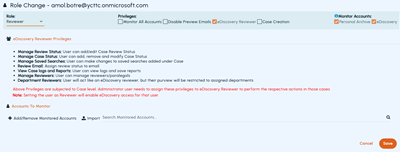
In the Role drop-down, select Reviewer
-
The Privilege field displays the following options:
Monitor All Accounts Select this option to allow the selected user account to view the archived messages of all other archive accounts. If you select this option, you do not need to complete the steps in the Accounts to Monitor section. Clear this option to allow the selected user account to view the archived messages of specific archive accounts. Upon clearing this option, the Accounts to Monitor section appears. Click Add/Remove Monitored Accounts and select the user accounts that you want reviewers to monitor. Click Save If you want to import monitored accounts, click Import . See Importing multiple user accounts for monitoring eDiscovery Reviewer This option is selected by default. When you define a user as a reviewer, this user gets access to the Arctera eDiscovery application. The eDiscovery Reviewer Privileges section lists all the privileges for your reference. These privileges vary with the case levels. As an administrator, you can assign these privileges to the eDiscovery Reviewers to perform various actions while reviewing the cases. Disable Preview Emails Select this option to prevent the reviewer from previewing emails from other archive accounts. Case Creation Select this option to allow the reviewer to create cases in Arctera eDiscovery. -
To set an expiry date for a reviewer's access to monitored accounts, clear the check box under Never Expires, then click the Calendar icon in the Expiration column, and select the desired date.
-
If a previously added monitored account is no longer required, click the Delete icon in its row.
-
Click Save
Related information