
Configuring SCIM collectors by using SCIM provisioning
Prerequisite
Before configuring the SCIM collector with SCIM provisioning, ensure you select the Using SCIM Provisioning option under Manage account provisioning remotely on the User Management page in the management console.
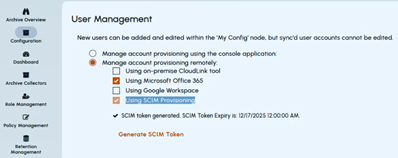
To configure Signal archiving collectors:
-
In the left navigation pane, select Archive Collectors The Archive Collector page appears.
-
Click Add collector to view available collector cards.Note: At the time of adding the first collector, the Add collector button appears in the middle of the screen. If one or more collectors are already added, the Add collector option appears on the top right-hand corner. If you select the collector that is not supported in Arctera Unified Platform, the Configure button gets disabled. You cannot configure such collectors.
-
Select the SCIM card, and click Configure
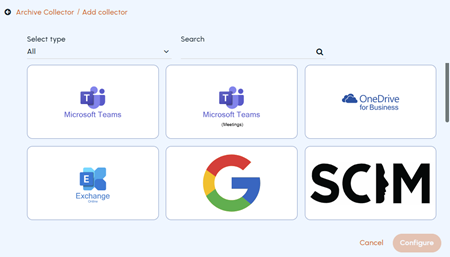 The SCIM Account Provisioning page appears.
 -
In the Credential Management section, click Generate New SCIM to generate a new.Note: Keep the SCIM secure, as you cannot copy it again after generating it. The expiry date of the is displayed for your reference.Close the details pop-up and click Next.
-
In the Provisioning section, select options to enable Personal Archive access for provisioned accounts and to send a welcome message. click Compose Welcome Message Template to define the welcome message content.Close the welcome message pop-up and click Next.
-
In the Summary section, ensure the details. In case, you want to modify anything, click Edit to navigate to corresponding page. Then click Next Upon successful provisioning, the SCIM collector card is displayed on the Archive Collectors page. You can manage this collector from that location as well.
Related information