
Designating employees as exception employee
You must have Manage Exceptions permission in the department to make an employee as an exception. By default, users that have the Compliance Supervisor, Rule Admin, or User Admin roles have this permission.
To designate employees as exception employee
-
In the left navigation pane, click Departments.
-
Search for and select the department in which you want to designate employees as exceptions.
-
In the Monitored Employees tab, select an individual employee.A list appears, showing all monitored employees along with their configured and enabled content sources.To search for employees by name, in the Filter by Employee Name field, enter keywords that characterize employee names or construct a query. Press ENTER or click the Filter icon to view the filtered names.Note: Do not use wildcard characters (asterisk or question mark) for partial searches. They do not return results.
-
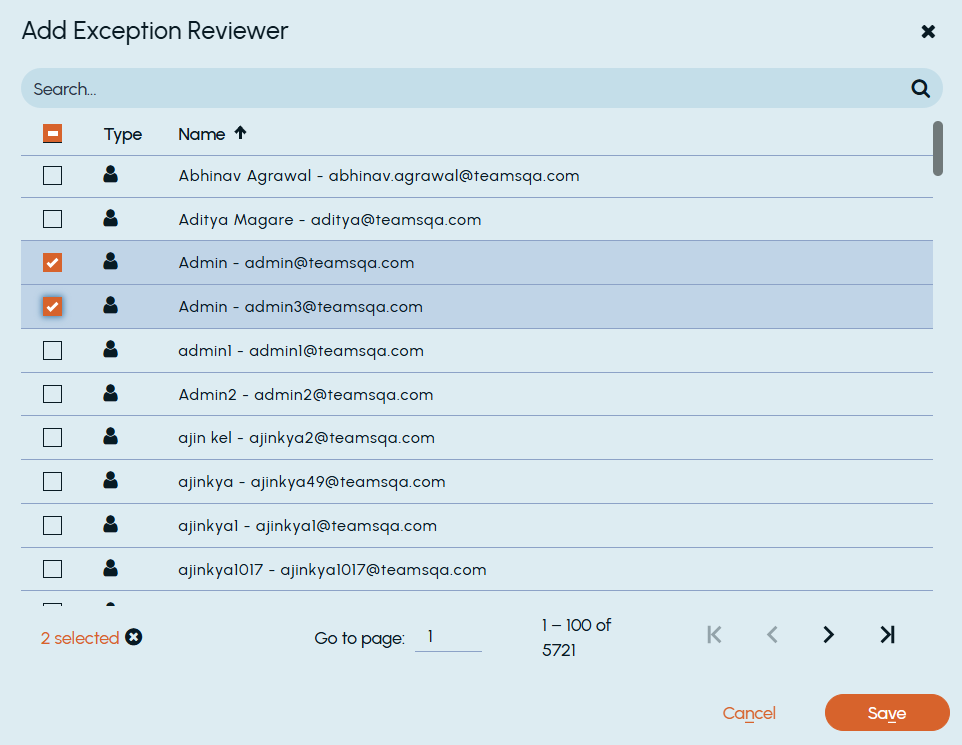
Click the Actions button, and click Make an exception.The Add Exception Reviewer dialog box appears.
-
Search for and select the employee who will be the reviewer of the exception employee, and then click Save.