
Viewing hotwords highlighting
Arctera Surveillance provides the option to highlight keywords in a hotword set that are added as search terms. Highlighting applies to the subject, message body, and HTML/text preview of attachments. See Creating and running department-level searches.
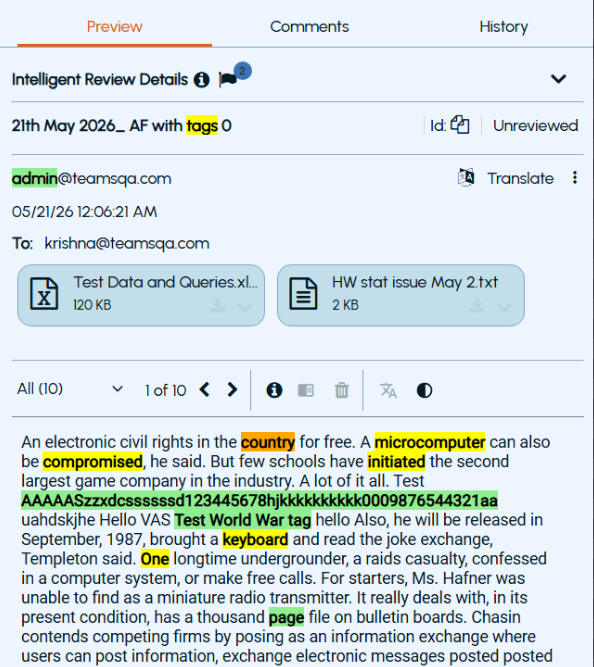
An item can have multiple hotwords or tags associated with it. Hotwords and tags are highlighted in the Preview pane for emails and collaboration messages. Hotwords are highlighted in yellow, tags in green, and the currently selected hotword or tag in orange color.
Note: When the tags suggested by Arctera Classification have a content match length exceeding 300 characters, Arctera Surveillance does not highlight those tags in the Preview pane.
To view highlighted hotwords of an item
-
In the left navigation pane, click Review.
-
Search for and select the department for which you want to review items.
-
(Optional) Click Clear to reset the filtering criteria.
-
Click Apply.Emails and collaboration messages from the selected departments are displayed.Note: If only the Exchange service is enabled for you, then only emails are displayed. If the MS Teams Archiving service is enabled for you, then collaboration messages are also displayed.
-
During the manual review, select the item to view its details in the Preview pane.A sample image to show hotwords highlighting in emails is given below.
-
In the Preview pane, click the drop-down arrow to view a list of hotwords and phrases. Select All to highlight all hotwords and tags, or select an individual hotword under Hotwords to highlight only its occurrences.
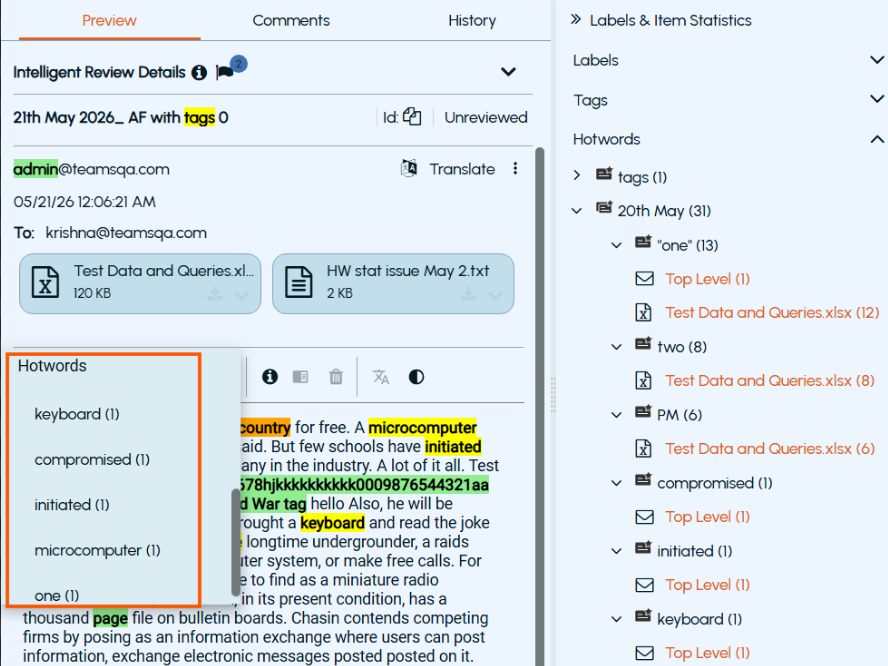 The application lets you review maximum hotword instance in the content by highlighting them. Therefore, when any search is based on multiple hotwords and phrases, and if any word or a fragment of a phrase is common among the hotwords and phrases, the improved hit-highlighting feature displays that word or a phrase as a separate hotword in the drop-down list.For example, the word 'draft' is a part of the sentence -'The email includes the updated draft in the attachment'. In this case, the hit-highlighting feature provides you the hotword options like 'draft', 'updated draft', and 'The email includes the updated draft in the attachment' as the word 'draft' is common in all instances.Note: Negative hotwords are excluded from hit highlighting.
-
The Labels & Item Statistics pane lists all matching hotword sets and tags associated with the selected item. Expand a hotword set to view the matching hotwords and the number of occurrences for each hotword. Note: Top Level represents occurrences found in the message body. If occurrences are found in attachments, the attachment names are listed separately.
-
Click a hotword occurrence (for example, Top Level or attachment name) to navigate directly to its first occurrence in message body or HTML/text preview of attachment.
-
Use the Next and Previous arrows to navigate between highlighted hotword instances. As you navigate through the results, the selected highlight changes.Hover over a highlighted hotword or tag to view the corresponding hotword search or tag name associated with it.Notes:
-
The highlighting navigation controls are displayed only when at least one hotword or tag is present.
-
Hotwords and tags are highlighted in the Preview pane for emails and collaboration messages.
-
The Next and Previous navigation controls are available only for emails, and not for collaboration messages.
-