
Changing the Preview pane position
To change the Preview pane position
-
In the left navigation pane, click Review.
-
In the item list pane, on the action menu bar, click Customize.
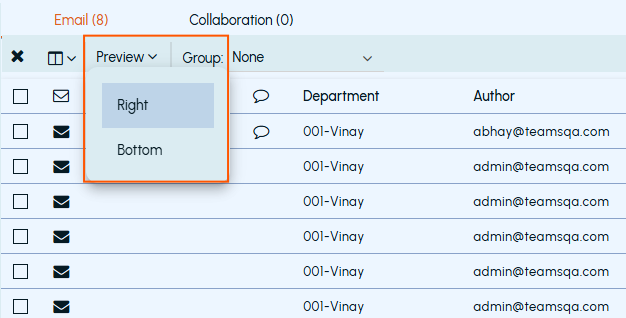
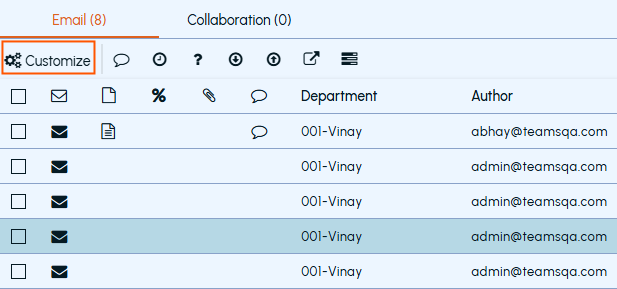 After you click Customize, the application displays another action menu bar that is specific to the view customization.
-
Click the Preview drop down and select any of the following options:
-
Select Right to preview content on the right side of the item list pane.
-
Select Bottom to preview content at the bottom of the item list pane.
This setting is saved and remains persistent until changed. -
Note: As per your requirement, the Preview pane can be located below or to the right of the Emails and Collaboration items list. You can also set the preview pane position inversely for the Emails and Collaboration items. For example, you can set the position of the Preview pane for the email items to right, whereas for the collaboration items to the bottom, or vice versa.