
TEMPLATE User Roles Submit Report Request
-
Open the TEMPLATE- User Roles - Submit Report Request.pbit file, and specify the following details.
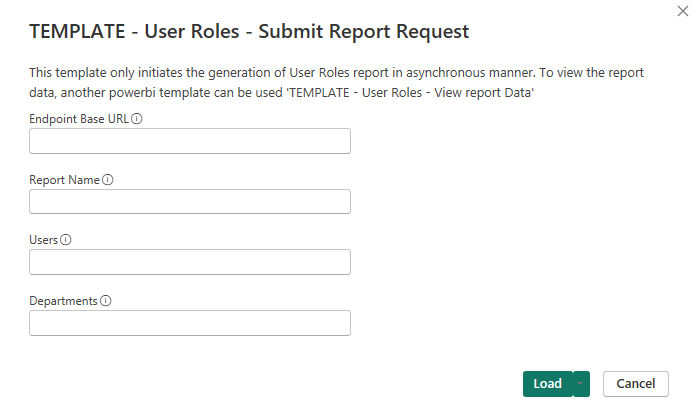
Endpoint Base URL Enter the REST API endpoint URL. For example, https://Report Name Specify a unique name for the report. Users Specify IDs of the users. Limitations This API can pass a maximum of 100 User IDs as input. Data Type : JSON array of integers 'id'(identifier fields) that is Users. Departments Specify IDs of the departments. Limitations This API can pass a maximum of 100 Departments IDs as input. Data Type JSON array of integers 'id'(identifier fields) that is Departments. -
Click Load.
-
Select the required OData Feed.
The application submits the report generation request and shows the details.
-
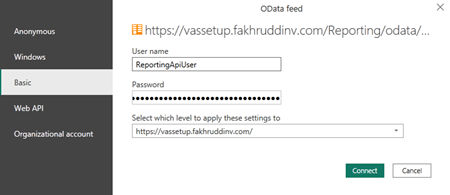
Click Connect and choose Basic Authentication mechanism to access Reporting API.
The application prompts you several times to provide appropriate credentials when querying Reporting API for each report.
-
Manually refresh the page to view the details such as Report ID, Report Name, Report Type, Report Date, Report Status, and Report Information.
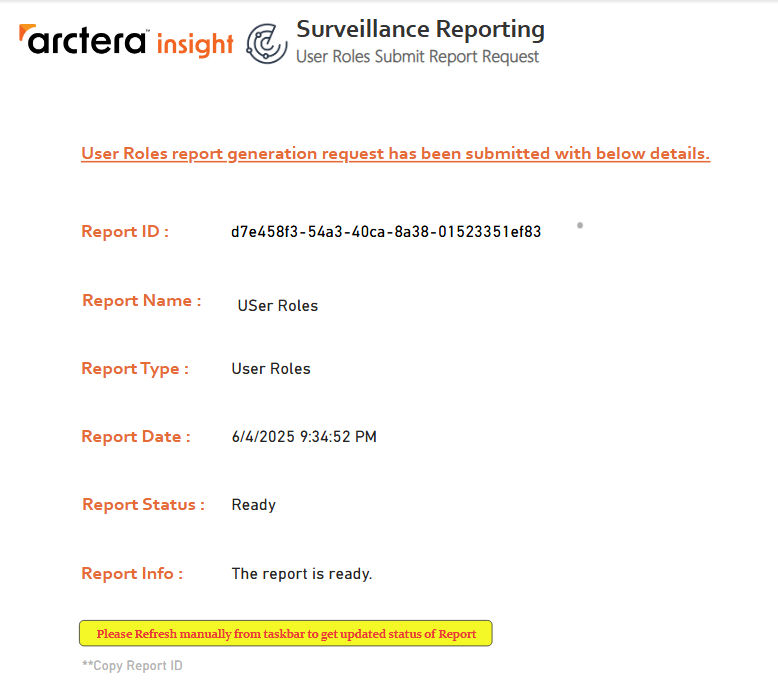
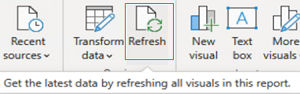
If still the entire details are not displayed, click Refresh again as shown in the sample image below.
-
When all the details are available and Report Status: Ready is displayed, copy the report ID.
Use this Report ID in the TEMPLATE- User Roles - View Report Data template to view the report. Click Refresh to view the updated status of report generation.
Upon successful processing, the application displays a report for the retrieved data of the corresponding API endpoint. To help you better visualize and understand the API Endpoint reports, refer to sample images of reports.
Related information