
TEMPLATE Searches
-
Open the TEMPLATE - Searches.pbit file, and specify the following details.
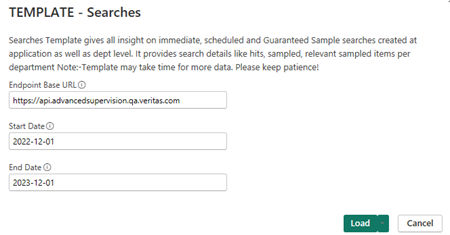
Endpoint Base URL Enter the REST API endpoint URL. For example, https://Start Date This filter specifies the start date for returning count of searches whose creation date is greater than or equal to this start date. Data Type : Date in the YYYY-MM-DD format that is StartDate. End Date This filter specifies the end date for returning count of searches whose creation date is less than or equal to this date. Data Type : Date in the YYYY-MM-DD format that is EndDate. -
Click Load.
-
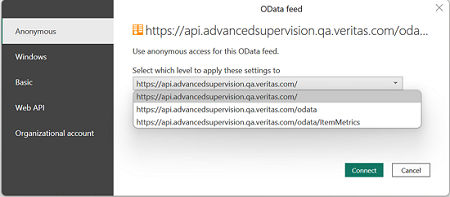
Select the required OData Feed.
-
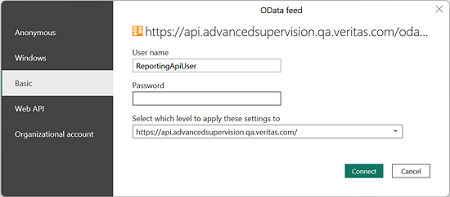
Click Connect and choose Basic Authentication mechanism to access Reporting API.
The application prompts you several times to provide appropriate credentials when querying Reporting API for each report.
-
Wait while Microsoft Power BI Desktop uses the provided filter values to generate queries and fetch OData reports from the specified Insight Surveillance Server. This process may take some time depending on the amount of data being retrieved from the server.
Upon successful processing, the application displays a report for the retrieved data of the corresponding API endpoint. To help you better visualize and understand the API Endpoint reports, refer to sample images of reports.
Related information