
Escalating the review items
Like adding comments to the review items (emails and collaboration messages), you can escalate the review items to an individual reviewer or a group of escalation reviewers.
To escalate a review item
-
In the left navigation pane, click Review.
-
Search for and select the department and the item you want to escalate from that department.
-
View the details in the Preview pane.
-
On the action bar, click Escalate.
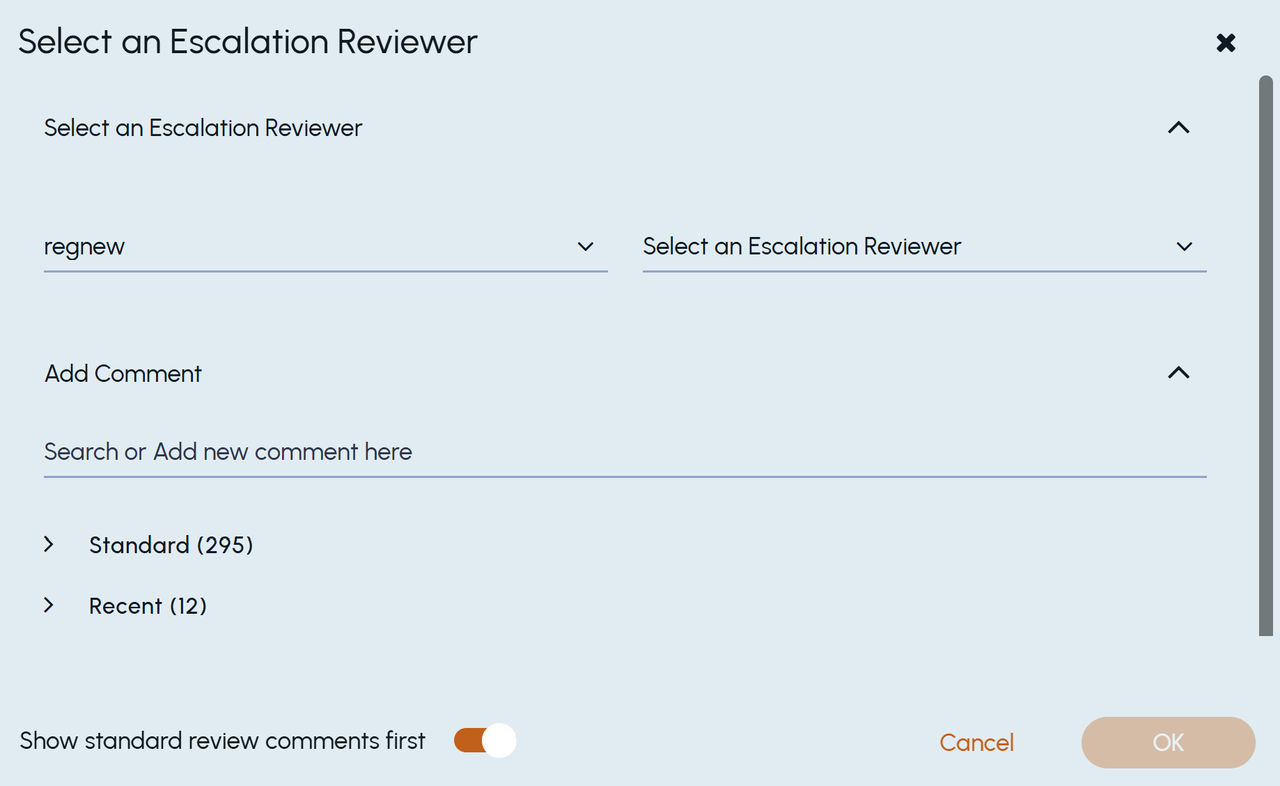
The Select an Escalation Reviewer dialog box appears.
 |
|---|
The department name appears in the first drop-down field.
-
In the Select an Escalation Reviewer drop-down, select an individual reviewer or an escalation reviewers group to whom you want to escalate the review item.
Selecting an escalation reviewers group is beneficial, as any member can review escalated items, whereas an individual reviewer's absence may cause delays.
-
Under Add Comments, expand the** Standard or Recent** comments group, and select a relevant predefined comment, depending on your permission level.
If you do not find a relevant predefined comment, enter a new comment for the item.
Note: To view the Standard review comments first always, enable theShow standard review comments firstoption.
-
Click OK.
The item is marked with the escalation symbol.
After an item is escalated, you can view the selected escalation reviewer or escalation reviewer group in the Escalation Owner column of the items grid, within theHistory pane of the item, and in theEscalation Reviewer facet underFilters.
Note: If an escalation reviewer is assigned theReview Only Assigned Escalationspermission, they can access only the escalation items explicitly assigned to them. All other escalation items remain inaccessible. For more information, seePredefined user roles and permissions.
Related information