
Item Label Metrics API
This topic provides information on the following:
Overview
The Item Label Metrics API generates reports that provide summary metrics for labels applied to items in Arctera Surveillance. The report aggregates label-related data based on the specified report parameters and filters, enabling you to analyze label distribution, monitor labeling activity, and generate compliance reports. The API supports both synchronous and asynchronous execution methods.
Submit Report Endpoint (asynchronous)
This API submits the report generation request which executes asynchronously. The result of this API contains the identifier for the report, status, and location for retrieving the report data. The report identifier and locations in the result can be used to track the report generation operation.
To use the ItemLabelMetricsAsync API, follow the steps below:
-
Call the ItemLabelMetricsAsync API to submit a report generation request.This asynchronous API supports GET and POST query methods. Use any of the following as needed:
-
GET https://<Reporting endpoint base URL>/OData/ItemLabelMetricsAsync?ReportName=<Name of the report>&StartDate=<YYYY-MM-DD>&EndDate=<YYYY-MM-DD> -
POST https://<Reporting endpoint base URL>/OData/ItemLabelMetricsAsync
Sample Input:-
GET https://<Reporting endpoint Base URL>/odata/ ItemLabelMetricsAsync?ReportName=<Name of the report>&StartDate= <YYYY-MM-DD>&EndDate=<YYYY-MM-DD>&Departments=[<DeptID1>,<DeptID2>,...] &Labels=[<LabelId1>,<LabelId2>...]&ReturnByDepartment=<true or false> -
POST https://<Reporting endpoint base URL>/OData/ItemLabelMetricsAsync
Parameter/Filters:The following parameters/filters can be used with the ItemLabelMetricsAsync API when invoked using the GET and POST methods. The system uses the AND operator between the filters to return the result based on the specified filters.Parameter Required Description ReportName Mandatory Specify the name of the report you want to generate. Limitations - The report name can be up to a maximum of 256 characters long. - Special characters are not allowed; only alphanumeric values are permitted. StartDate Mandatory StartDate refers to the date items are captured or ingested in Arctera Surveillance and recorded as their CaptureDate. Specify the start date to return the count of items with a CaptureDate on or after this date. Data Type Date in the YYYY-MM-DD format that is StartDate. Limitations EndDate Mandatory Specify the end date to return the count of items with a CaptureDate on or before this date. Data Type Date in the YYYY-MM-DD format that is StartDate. Limitations Departments Optional Specifies the departments to which the captured item belongs and returns item counts for items within that department. Data Type JSON array of integers 'id'(identifier fields) that is Department IDs. Limitation As an input, this API can pass maximum of 1000 Departments IDs. - To include results for all departments of a specified customer in a report, do not specify any department IDs in a query. - To include results for specific departments of a specified customer in a report, specify department IDs in the query. Note: To get the Department IDs, See Departments API. Refer to the departmentId field only. Labels Optional Specifies the labels of the captured items and returns item counts for those labels. Data Type JSON array of integers 'id'(identifier fields) that is label IDs. Limitation As an input, this API can pass maximum of 1000 label IDs. - To include results for all the labels of a specified customer in a report, do not specify any label ID in a query. - To include results for specific label IDs of a specified customer in a report, specify label IDs in the query. Note: To get the Label IDs, See Labels API. Refer to the labelID field only. ReturnByDepartment Optional To generate the Item Label Metrics Report by departments, set this value to True. To generate the Item Label Metrics Report by monitored employees, set this value to False. The default value of this parameter is set to False. Scenario 1: New request to submit a reportSample input: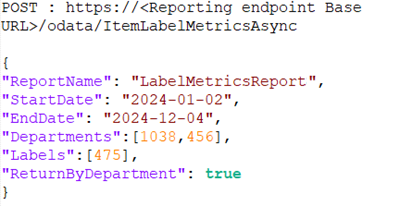 Sample response:
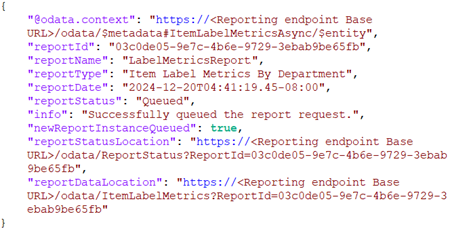
Name Description reportId Displays report ID. It is generated upon successful execution of API. reportName Displays report name. It is generated upon successful execution of API. reportType Displays the report type as Item Label Metrics. reportDate Displays the date of report generation after successful execution of API. reportStatus Displays report status. For more information on statuses, see Report Status API . info Displays a message if the report request has queued successfully or not. newReportInstanceQueued Specifies whether a new report generation request has been submitted or not. The Rate Limiting feature restricts submission of multiple requests with identical input parameters if attempted within one minute. It returns the following values: True: The value is shown as True, if the new report request has been queued successfully. False: The value is shown as False, if the input parameters of the current request are identical to the parameters of the already submitted request within one minute, a new report will not be queued. As a result, the details of the existing report request are returned. reportStatusLocation Displays a URL with report ID. To view the status of this report, use the same URL. reportDataLocation Displays a URL for the location of report data. To access the report data, use the same URL. Scenario 2: The same request has been submitted again within one minuteSample response: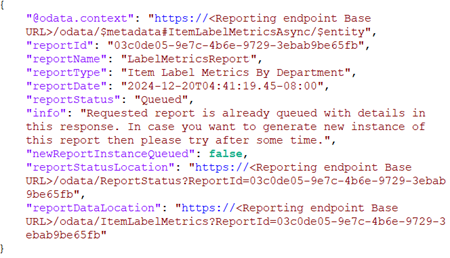
-
-
Call the ReportStatus API to get the status of the ItemLabelMetricsAsync API report. See Report Status API.
-
Once the report is ready, call the ItemLabelMetrics synchronous API to retrieve the report data from the asynchronous API.
View Report Endpoint (synchronous)
This report provides detailed insights into the labels applied to items for monitored employees within a specific department. This report includes the following key information:
-
Item Counts by Label: Displays the number of items each label has been applied to for monitored employees in the department.
-
Capture Information: Displays the capture date along with counts for various marking statuses, categorized by capture types, message types, and directions.
-
Label Details: Provides additional details about the labels, including label type and label group IDs.
-
Search Support: If items are captured through a search, the corresponding search ID and name will be displayed for easy identification.
-
This report helps tenants/customers to adjust item labels and can be generated at the following levels:
-
Item Label Metrics by Department Report: Displays metrics for items across the department.
-
Item Label Metrics by Monitored Employee Report: Displays metrics for monitored employees within the department.
-
Endpoint URL
GET https://<Reporting endpoint base URL>/odata/ItemLabelMetrics
Sample requests
-
GET https://<Reporting endpoint Base URL>/odata/ItemLabelMetrics?reportid=<ID of the ItemLabelMetricsAsync API report> -
GET https://<Reporting endpoint Base URL>/odata/ItemLabelMetrics?reportid=a337e782-aa81-40fd-a65c-589b1bb6da56
Parameter/Filters
The following filters can be used with the ItemLabelMetrics API when invoked using the GET method only. The system uses the AND operator between the filters to return the result based on the specified filters.
| Parameter | Required | Description |
|---|---|---|
| ReportID | Mandatory | Specify the ID of report you want to view. |
Scenario 1: Item Label Metric Report by Employee
GET https://<Reporting endpoint Base URL>/odata/ItemLabelMetrics?ReportId=be1bbfb3-fc7f-4d93-b178-e002afac76d3
Sample response:
Status code: 200 OK
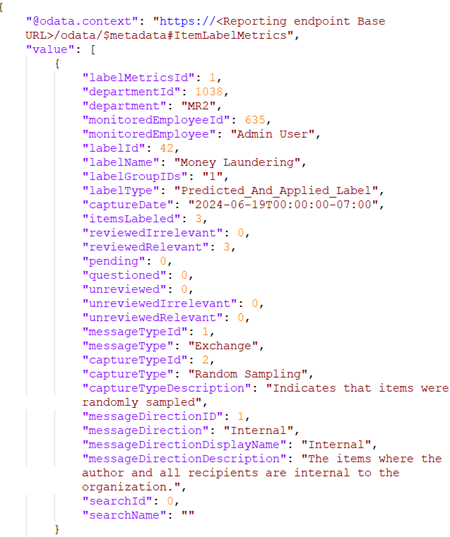
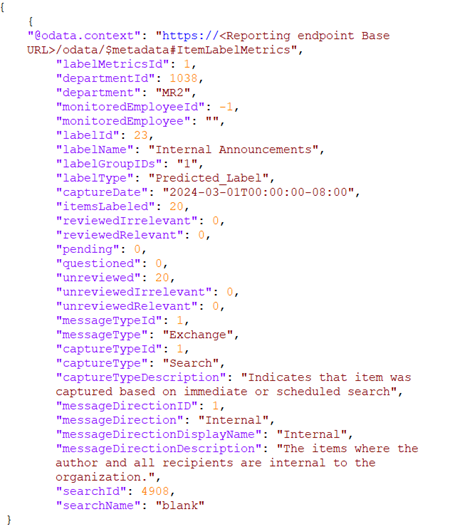
Scenario 2: Item Label Metric Report by Department
Sample response:
Status code: 200 OK
Supported OData Filters
Responses
See Responses.