
Setting up new schedules
Note: You must have theManage Schedulespermission to set up new schedules. By default, users with the application role ofApp Rule Adminhave this permission.
To set up a new schedule
-
In the left navigation pane, click Configuration.
-
Click Schedules.
-
Click New Schedule.
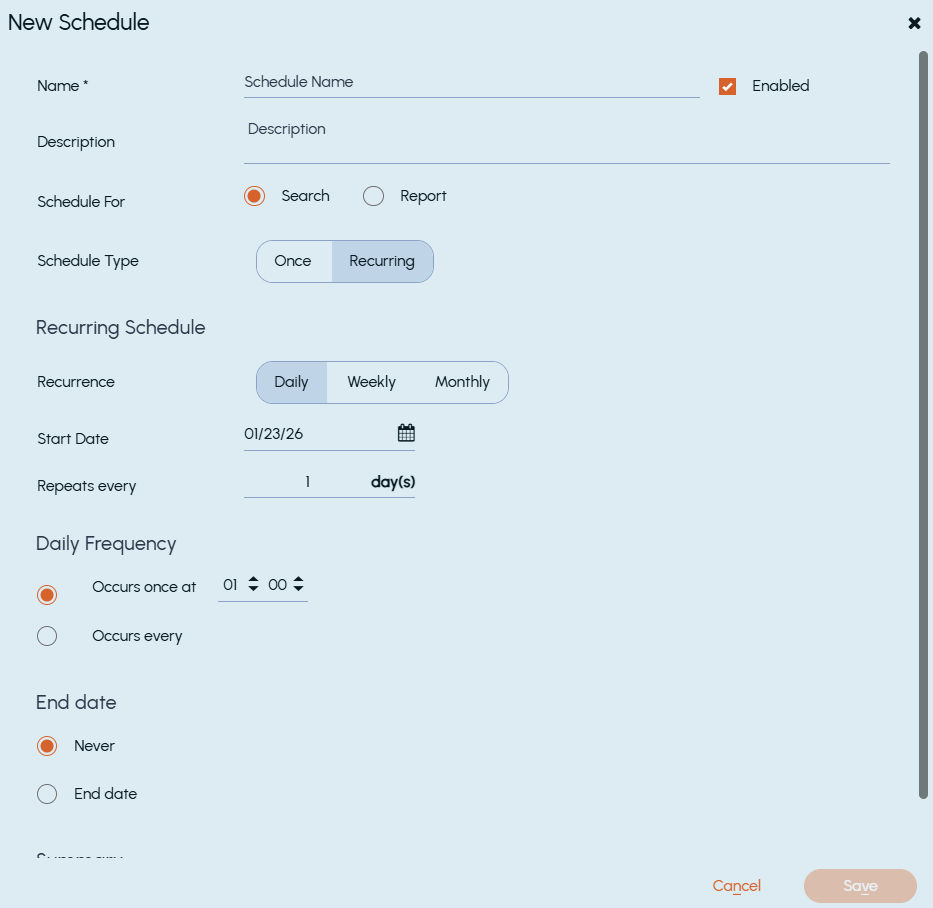
The New Schedule dialog box appears.
 |
|---|
-
In the Name andDescription fields, type a unique name and an optional description for the schedule respectively.Note: The schedule name can contain up to 50 characters and cannot be edited once created. The description can contain up to 250 characters.
-
Select the Enabled check box so that the schedule is available for selection when you define the criteria for a new schedule.
-
Select Schedule For>Search to create a new search schedule.
Select Schedule For>Report to create a report schedule that can be used for scheduled runs in the Enhanced Reporting tab. For more information, see Enhanced Reporting (UI mode) in the Working with reports chapter.
Note: Only schedules created forReportare available for scheduled report runs in theEnhanced Reportinguser interface.
-
Select the required schedule type. The options are as follows:
Schedule type Description Once Causes any searches or reports that use this schedule to run only once, at the time that you set in the schedule. Recurring Causes any searches or reports that use this schedule to run automatically at the interval that you specify in the schedule. -
Click Save.
Related information