
Viewing hotwords in collaboration message
Arctera Surveillance provides the option to highlight keywords in a hotwords set that are added as search terms. Highlighting applies to message content and attachment content only. See Creating and running department-level searches.
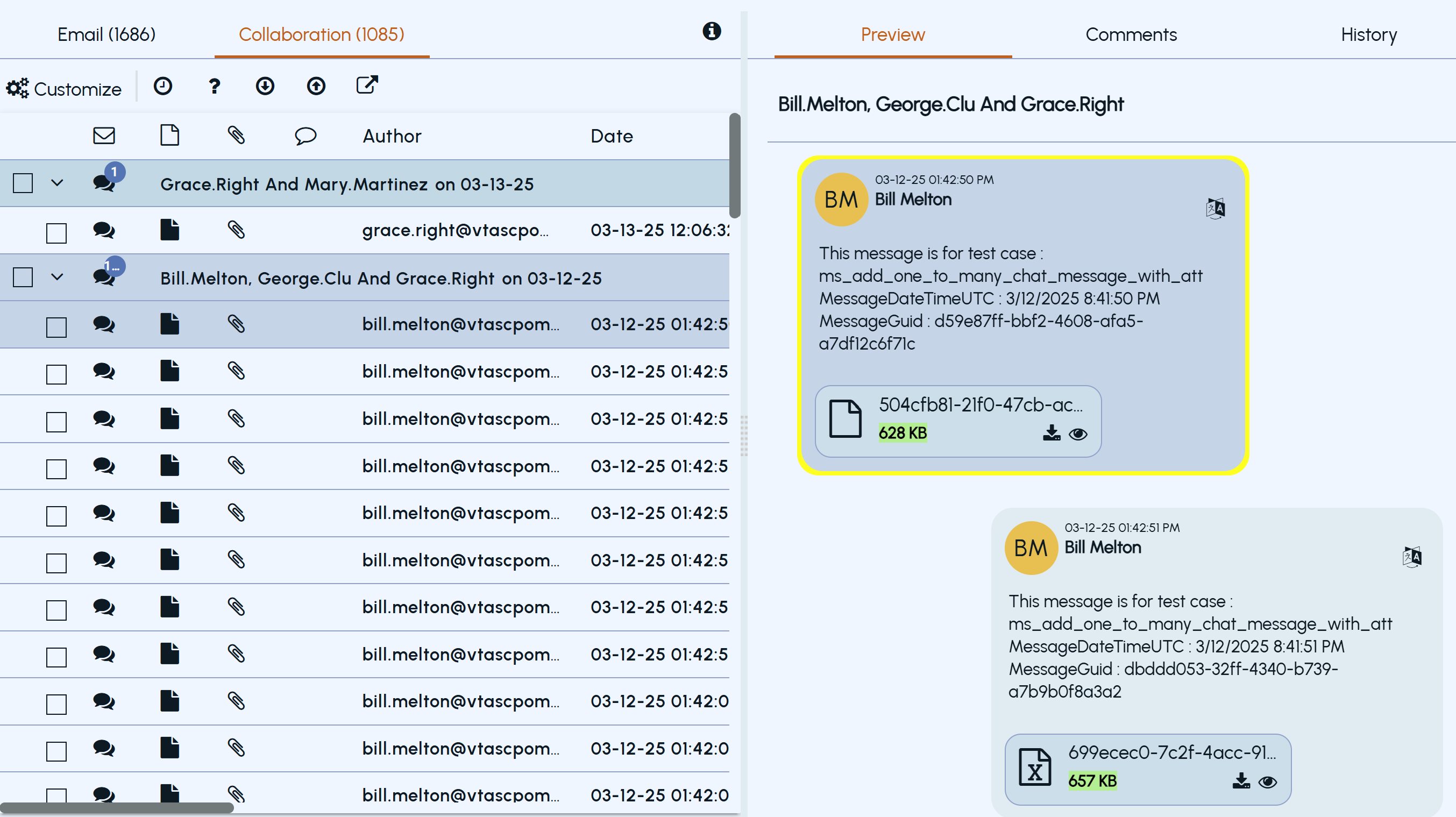
If the collaboration message contains the hotwords and tagged instances, the hotwords are highlighted in yellow color and the tags are highlighted in green color.
To view highlighted hotwords in a collaboration message
-
In the left navigation pane, click Review.
-
Search for and select the department for which you want to review items.
-
(Optional) To reset the filtering criteria, click Clear, and set a new criterion.
-
Click Apply.Emails and collaboration messages from the selected departments are displayed.
-
Select a Teams Chat or Channel item to view its details in the Preview pane.
-
Hover over a highlighted hotword or tag to view the corresponding hotword search or tag name.Notes:
-
Hotwords are highlighted only when the review item contains matching hotwords.
-
Hotword navigation controls are not available for collaboration messages.
-
-
Use the scroll bar to navigate through the message content.