
TEMPLATE- Item Details View Report Data
-
Open the TEMPLATE- Item Details - View report Data.pbit file, and specify the following details.
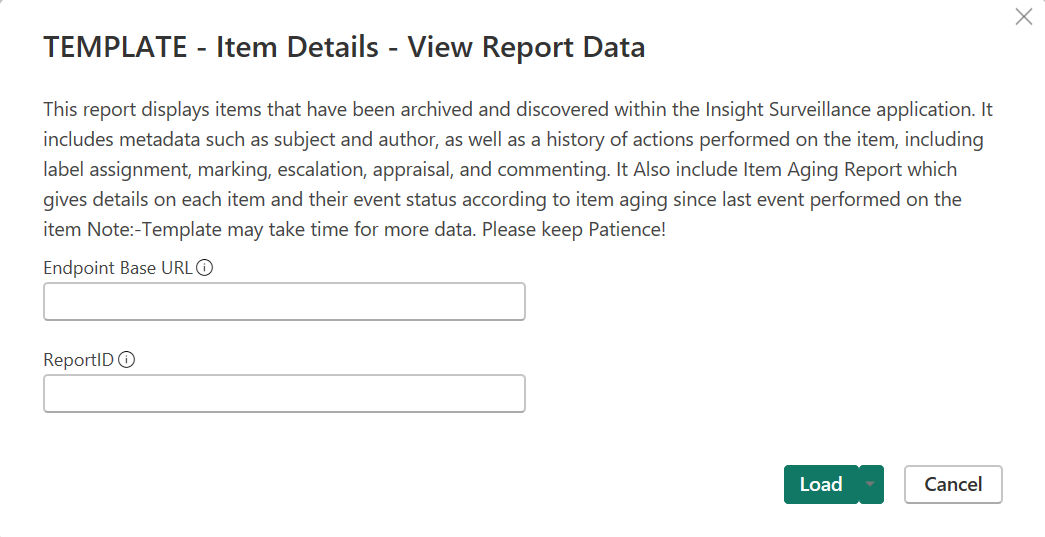
Endpoint Base URL Enter the REST API endpoint URL. For example, https://Report ID Enter the Report ID that is generated during execution of ItemDetailsAsync API report or the TEMPLATE- Item Details - Submit Report Request template. -
Click Load.
-
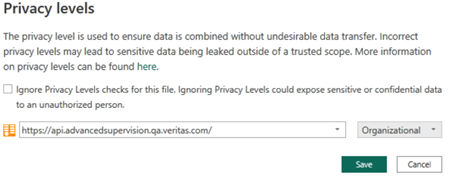
Set the privacy organizational or public for each selected data source.
For more information, See Guidelines for using Insight Surveillance templates with Microsoft Power BI Desktop.
 |
|---|
-
Click Save.
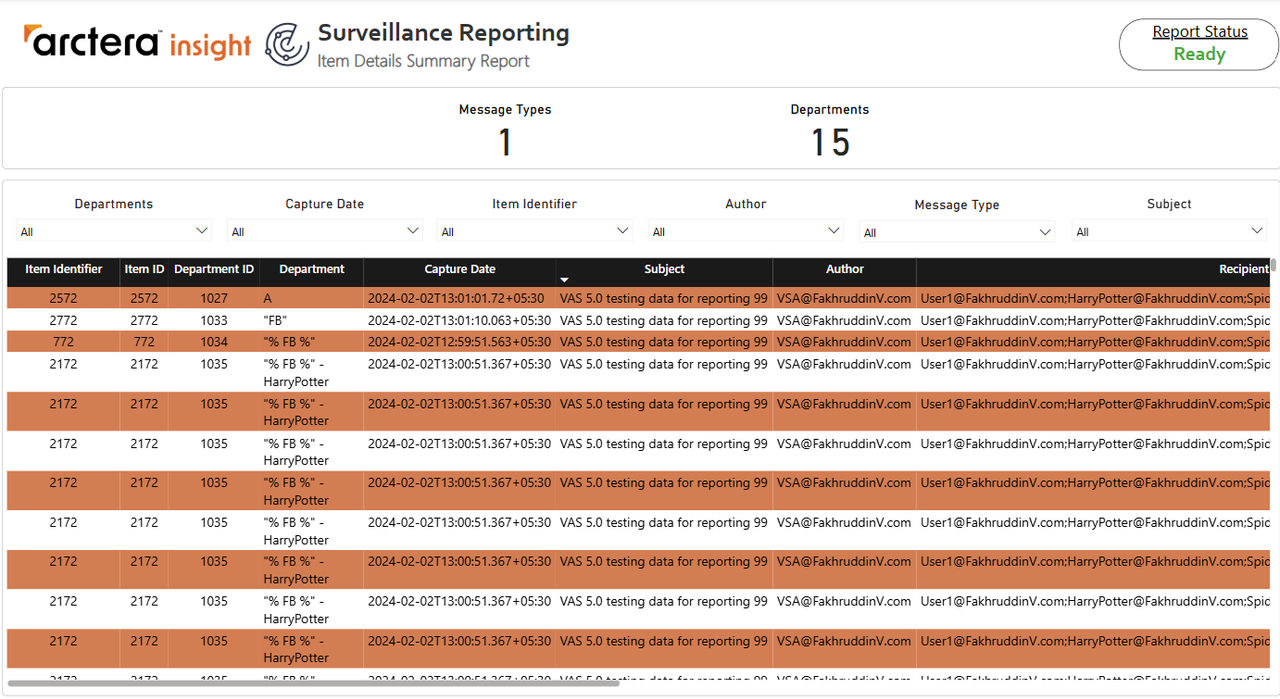
Upon successful processing, the application displays a report for the retrieved data of the corresponding API endpoint.
 |
|---|
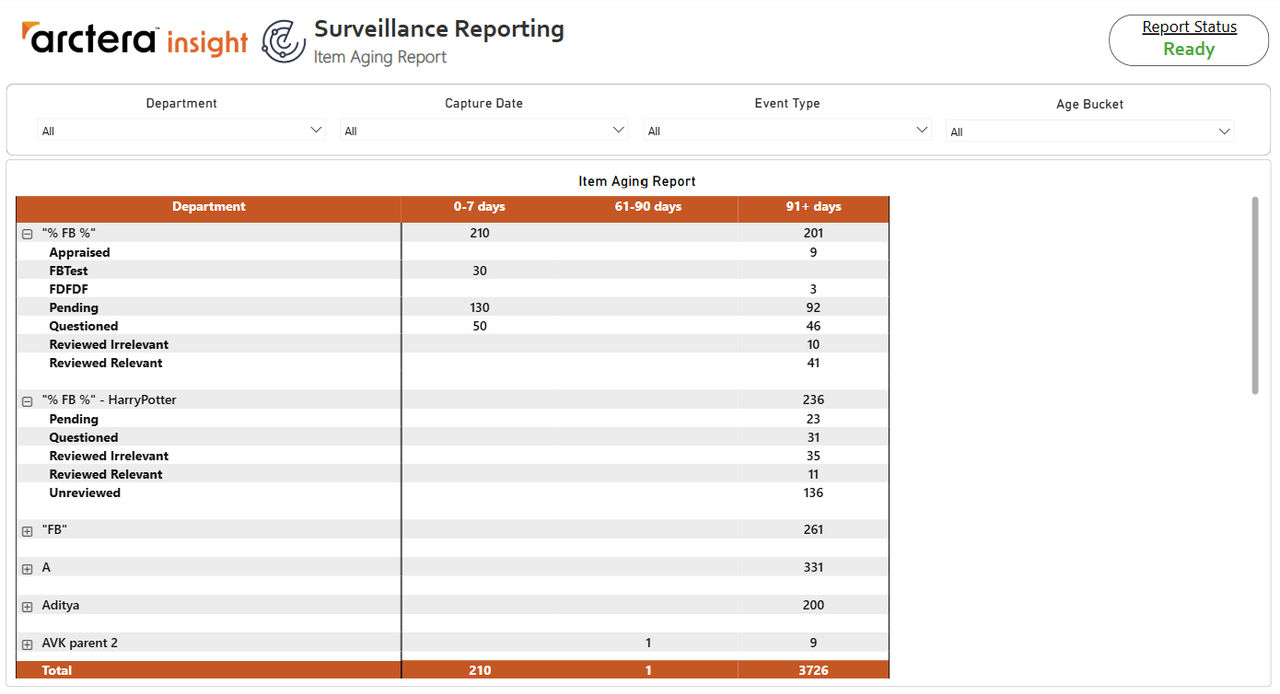
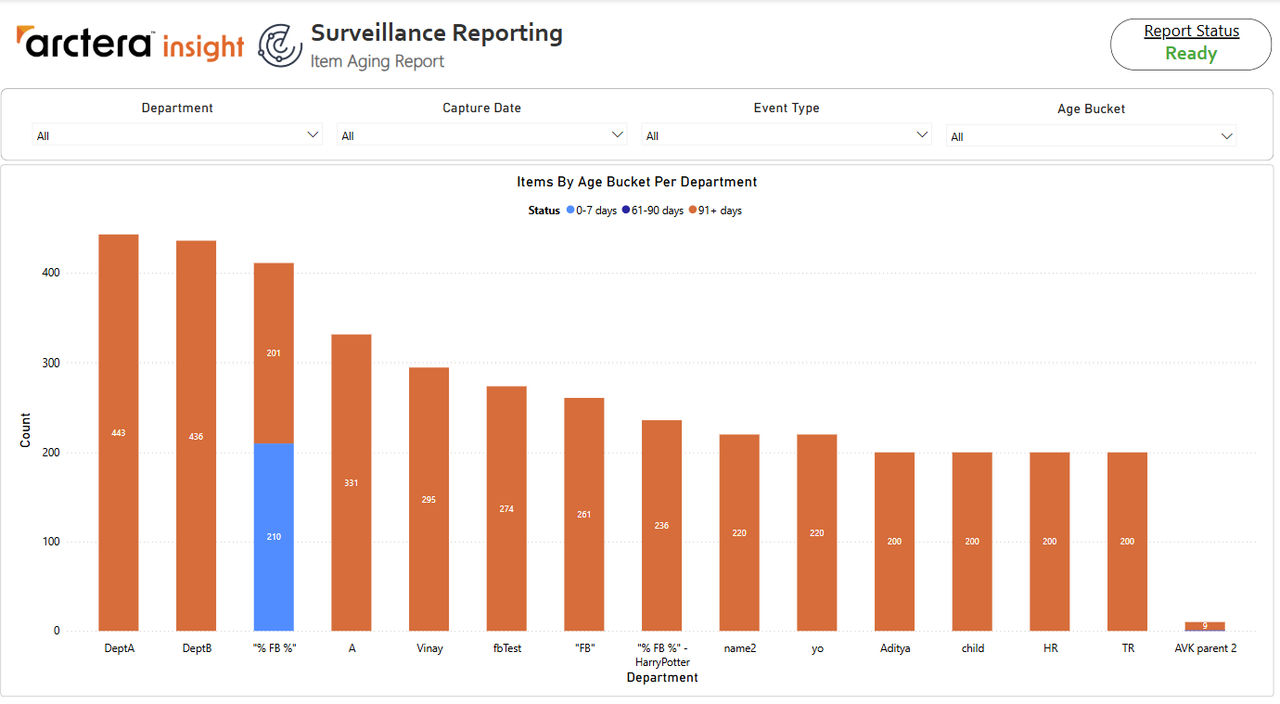
Arctera Insight Surveillance integrates Item Aging Report into the Item Details Power BI report for extended visibility, though it is not backed by a separate API endpoint. Refer the following images:
 |
|---|
This report shows the number of messages that are either still unreviewed, pending review, or other event type within the given departments, along with organizational roll-up totals. Item Age bucket gives an indication of how long a message has remained pending, unreviewed or any other event type state from when it was captured for review.
The graphical representation of the same data can also be seen with the help of Item Aging Report template.
 |
|---|
To help you better visualize and understand the API Endpoint reports, refer to sample images of reports.
Related information