
TEMPLATE- Item Hotword Metrics - Submit Report Request
-
Open the TEMPLATE- Item Hotword Metrics - Submit Report Request.pbit file, and specify the following details.
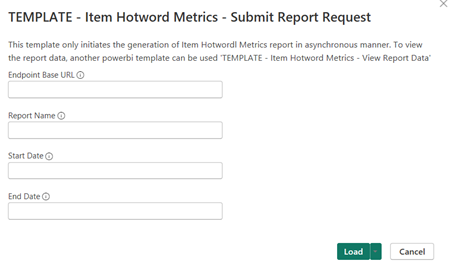
Parameter Description Endpoint Base URL Enter the REST API endpoint URL. For example, https://<Reporting endpoint Base URL>Report Name Specify a unique name for the report. Start Date Specify the earliest date from which you want to gather data captured or ingested in Arctera Surveillance for your report. End Date Specify the end date until which you want to gather data captured or ingested in Arctera Surveillance for your report. -
Click Load.
-
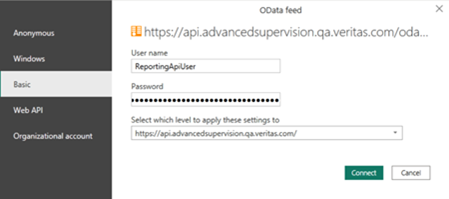
Select the required OData Feed.
 The application submits the report generation request and shows the details.
-
Click Connect and choose Basic Authentication mechanism to access Reporting API.The application prompts you several times to provide appropriate credentials when querying Reporting API for each report
-
Manually refresh the page to view the details such as Report ID, Report Name, Report Type, Report Date, Report Status, and Report Information.
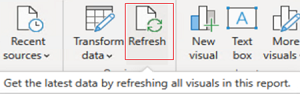
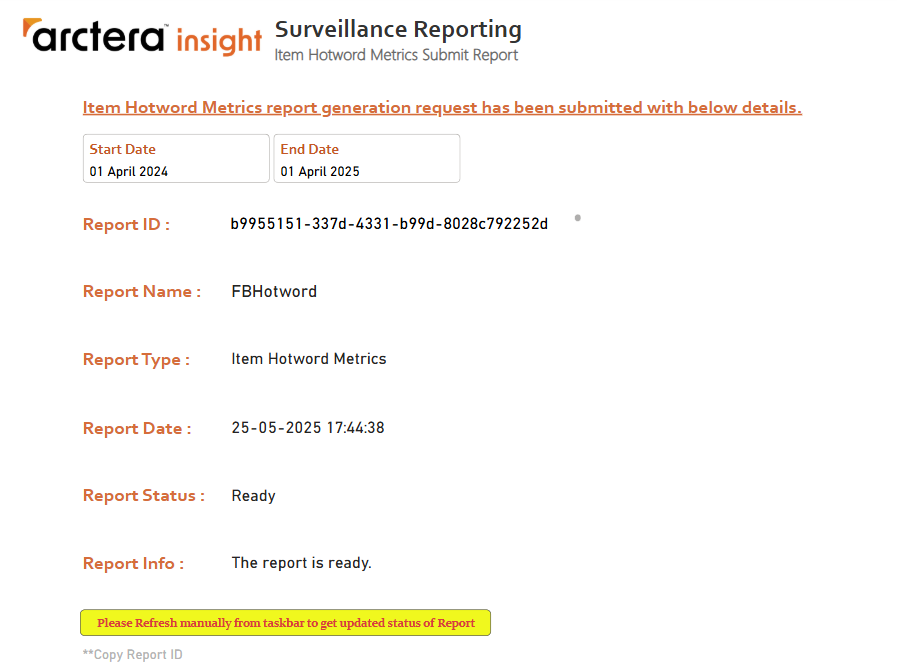 If still the entire details are not displayed, click Refresh again as shown in the sample image below.
-
When all the details are available and Report Status: Ready is displayed, copy the report ID.Use this Report ID in the TEMPLATE- Item Hotword Metrics - View Report Data template to view the report. Click Refresh to view the updated status of report generation.